
Meet an enemy
- Enemies and battle choices
- 60 minutes
- Advanced Scratch · After Monster Quest
Start a battle and introduce its health counters.
Recommended preparation: Scratch Monster Quest. Complete Monster Quest or bring equivalent Scratch experience. Build from a blank project, one small pictured action at a time.
Your goal
Switch from exploration to a separate battle state.
A turn-based battle waits for a choice. The world stops moving while the hero and enemy take turns.
Do one step. Match the picture. Then move on.
Select Stage’s thumbnail
Upload the battle background
Select Stage → Backdrops. Upload battle-backdrop.png. Rename the backdrop Battle Arena. Keep the earlier backdrops.
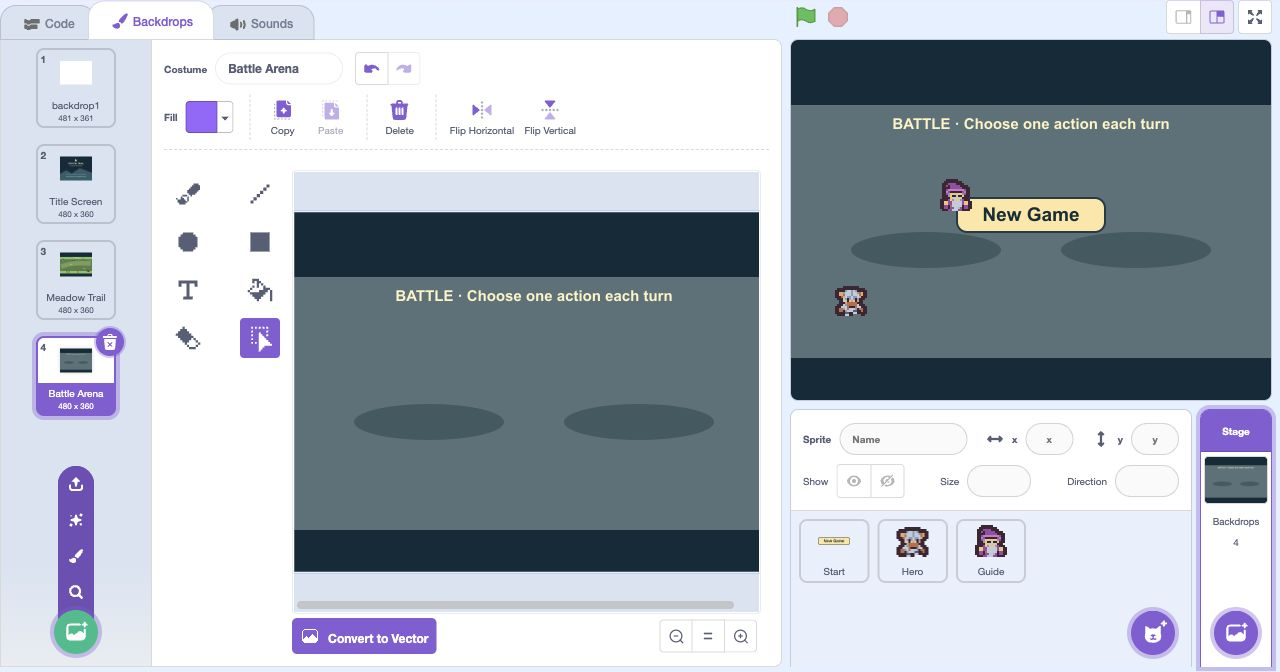
- Click: Open Backdrops
- Click: Point at Choose a Backdrop
- Click: Click Upload Backdrop
- Click: Rename this picture
Actual Scratch editor · step 1 Add Enemy
Upload the first enemy
Upload slime-idle.png as a new sprite. Rename the sprite Enemy. Rename its first costume Slime 1.
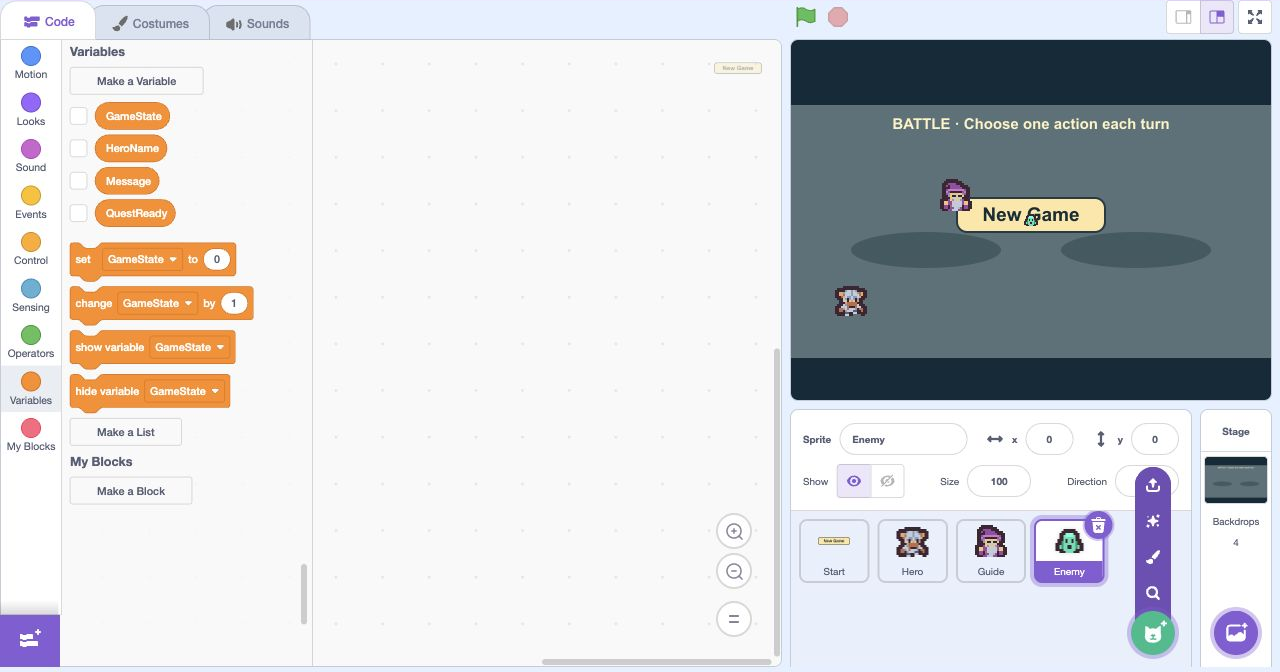
- Click: Point at Choose a Sprite
- Click: Click Upload Sprite
Actual Scratch editor · step 2 Select Enemy
Add its second costume
Select Enemy → Costumes. Use Upload Costume to add slime-blink.png. Rename it Slime 2. Both pictures belong to Enemy.
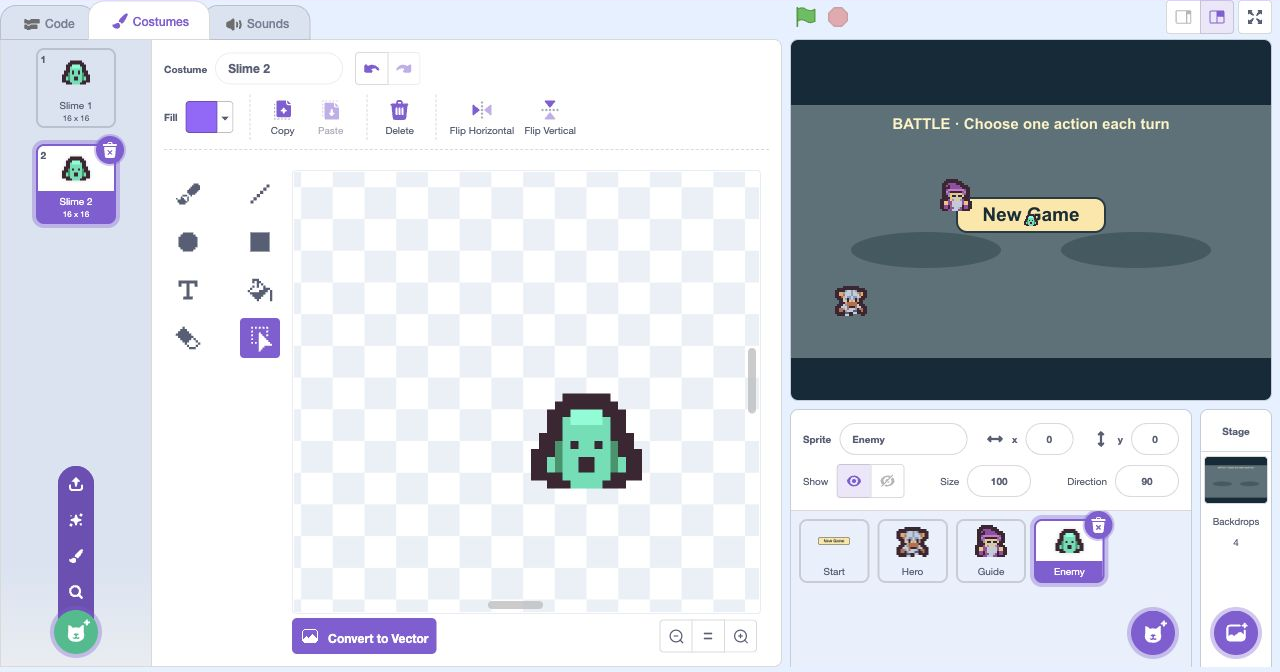
- Click: Open Costumes
- Click: Point at Choose a Costume
- Click: Click Upload Costume
- Click: Rename this picture
Actual Scratch editor · step 3 Select Enemy
Place the enemy
Select Enemy. Set x to 125, y to −30, size to 200 and rotation style to do not rotate. The hero begins on the opposite side of the map.
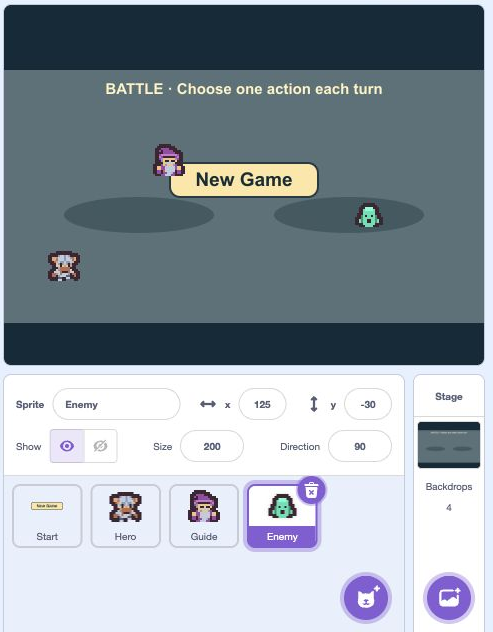
- Click: Set the pictured x and y
- Click: Set the pictured size
- Click: Open Direction to choose no rotation
Actual Scratch editor · step 4 Select Stage’s thumbnail
Create area and health variables
Create Area, Cleared, HP and MaxHP, each For all sprites. Uncheck their monitors. HP means health points; MaxHP is the most health the hero can have.
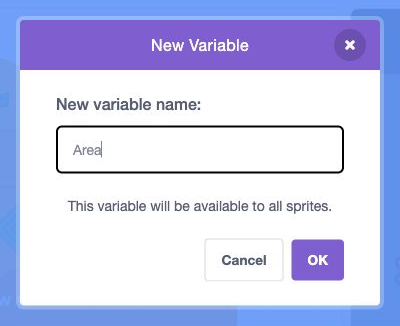
- Click: Type the variable name
- Check: This variable is shared by all sprites
- Click: Click OK
Actual Scratch editor · step 5 Select Stage’s thumbnail
Create battle-strength variables
Create Power, EnemyHP and EnemyPower, each For all sprites. Uncheck their monitors. Power is the damage an attack causes; EnemyPower is the damage returned by the enemy.
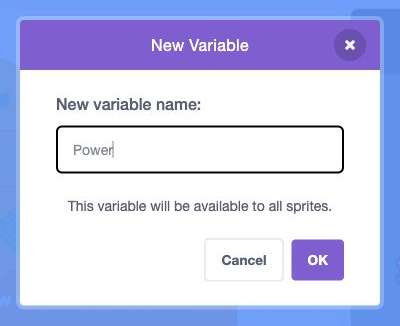
- Click: Type the variable name
- Check: This variable is shared by all sprites
- Click: Click OK
Actual Scratch editor · step 6 Select Enemy
Give Enemy its own animation counter
Select Enemy. Create AnimTicks For this sprite only. Uncheck its monitor. This is a separate counter from Hero’s AnimTicks, even though the names match.
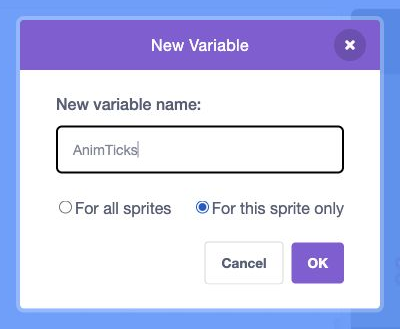
- Click: Type the variable name
- Click: Choose For this sprite only
- Click: Click OK
Actual Scratch editor · step 7 Select Stage’s thumbnail
Reset the starting area
Select Stage. Extend the existing green-flag stack after its earlier resets. Set Area to 1 and Cleared to 0. A cleared area has already awarded its crystal.
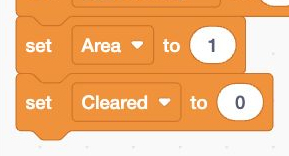
- Add: Add or update the highlighted blocks
Actual Scratch editor · step 8 Select Stage’s thumbnail
Set the hero’s starting strength
Continue that stack. Set MaxHP to 10 + (2 × Area), Power to Area + 2, HP to MaxHP, EnemyHP to 0 and EnemyPower to 0. Use the green Operators blocks for the calculations.
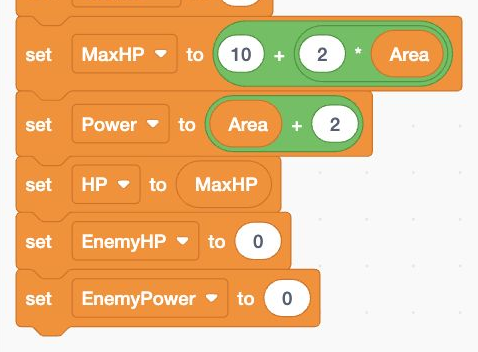
- Add: Add or update the highlighted blocks
Actual Scratch editor · step 9 Select Stage’s thumbnail
Reset battle values for New Game
In Stage’s new game stack, copy the seven pictured Area-through-EnemyPower resets after QuestReady = 0 and before ask hero name. New Game must begin with fresh battle values. Keep its existing broadcasts at the bottom.
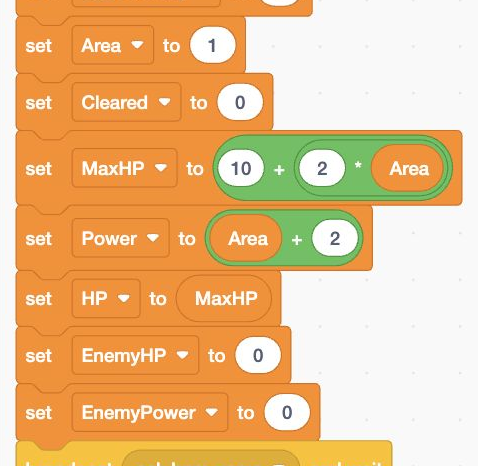
- Add: Build these blocks in this order
Actual Scratch editor · step 10 Select Stage’s thumbnail
Update the area’s instructions
In Stage’s load area stack, change Message to Click Guide. Type YES to begin. Keep the Meadow Trail backdrop block.

- Add: Add or update the highlighted blocks
Actual Scratch editor · step 11 Select Hero
Keep the hero visible in battle
Select Hero’s existing visibility loop. Extend its or condition to include GameState = battle and GameState = turn, as pictured. Keep the single show / hide pair.

- Add: Add or update the highlighted blocks
Actual Scratch editor · step 12 Select Guide
Allow a quest only for an unbeaten foe
In Guide’s YES branch, add if Cleared = 0. Accept with QuestReady = 1 and Message Walk to the monster to battle.; otherwise show This area is already clear. Set HINT’s Message to Arrows move. Touch foe after YES.
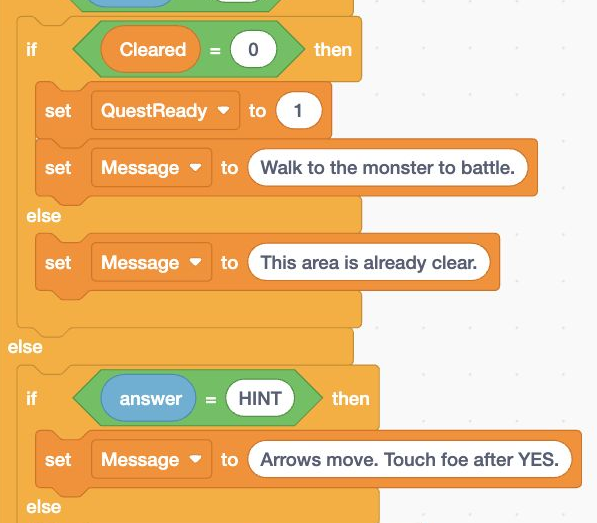
- Add: Add or update the highlighted blocks
Actual Scratch editor · step 13 Select Enemy
Reset Enemy on the map
Select Enemy. Add when I receive load area → go to x: 125 y: −30 → set AnimTicks to 0 → switch costume to Slime 1.
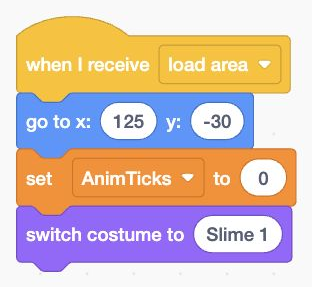
- Add: Add or update the highlighted blocks
Actual Scratch editor · step 14 Select Enemy
Show an undefeated enemy
Build Enemy’s pictured visibility loop. On the map, show only when Cleared = 0. Also show during battle or turn. The extra loading battle state keeps the enemy visible while the scene changes.
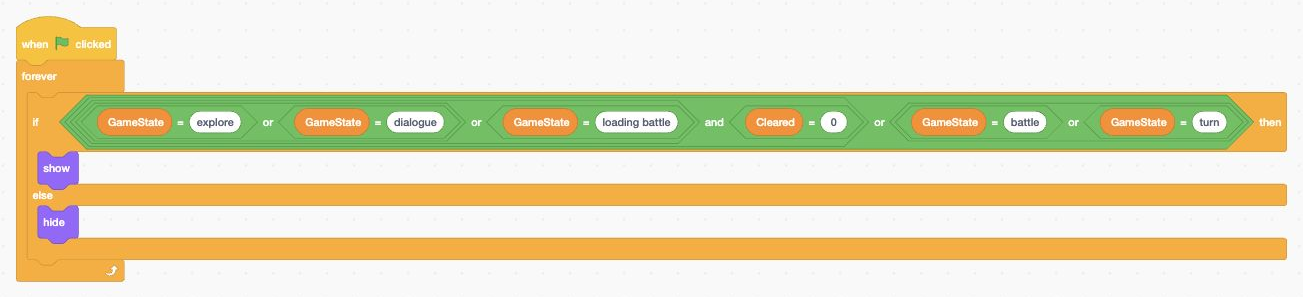
- Add: Build these blocks in this order
Actual Scratch editor · step 15 Select Enemy
Begin the enemy’s blink animation
Give Enemy a new green-flag loop. During explore or battle, change AnimTicks by 1. If AnimTicks = 18, add next costume. The second slime picture makes the enemy blink.
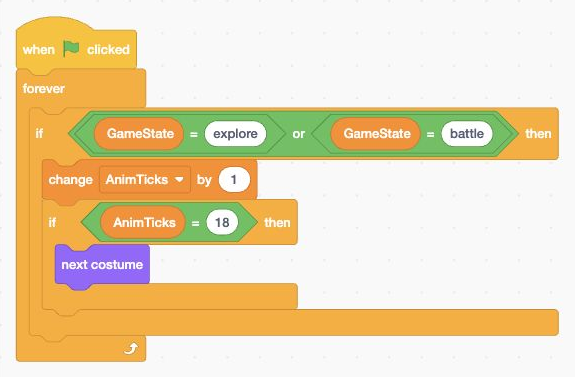
- Add: Add or update the highlighted blocks
Actual Scratch editor · step 16 Select Enemy
Return to its open-eyed costume
Under the first animation test, add if AnimTicks > 21. Inside it, switch costume to Slime 1 and set AnimTicks to 0. Keep both tests inside the same loop.
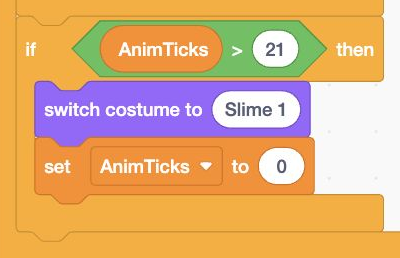
- Add: Add or update the highlighted blocks
Actual Scratch editor · step 17 Select Hero
Move the hero into battle
Select Hero. Add when I receive start battle → go to x: −105 y: −15 → switch costume to Stand → point in direction 90. Create the start battle message.
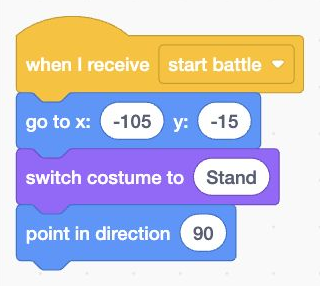
- Add: Add or update the highlighted blocks
Actual Scratch editor · step 18 Select Enemy
Move Enemy into battle
Select Enemy. Add when I receive start battle → go to x: 105 y: −15 → switch costume to Slime 1. The two characters should face each other across the arena.
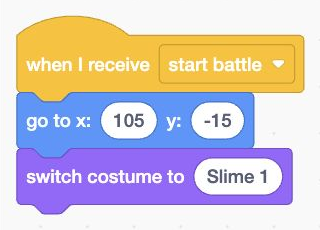
- Add: Add or update the highlighted blocks
Actual Scratch editor · step 19 Select Stage’s thumbnail
Prepare battle values
Select Stage. Add when I receive start battle. Set GameState to turn, EnemyHP to 8 × Area, and EnemyPower to Area + 1. The temporary turn state prevents premature button clicks.
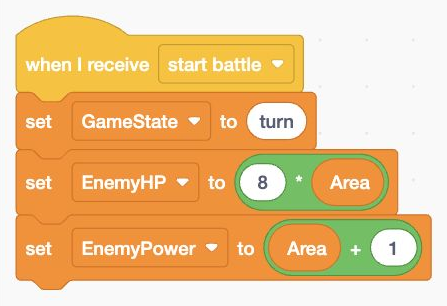
- Add: Add or update the highlighted blocks
Actual Scratch editor · step 20 Select Stage’s thumbnail
Open the battle arena
Finish that stack with switch backdrop to Battle Arena, set Message to Choose one battle action., and set GameState to battle. The Attack button arrives in the next lesson.
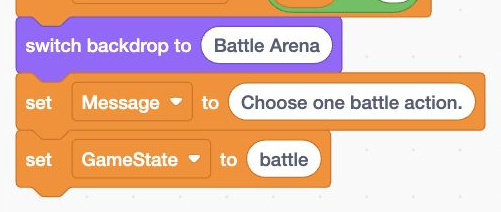
- Add: Add or update the highlighted blocks
Actual Scratch editor · step 21 Select Stage’s thumbnail
Show health while playing
Update Stage’s existing information loop to match the pictured state condition. Add show HP and MaxHP in its first slot, and hide HP and MaxHP in its else slot. Keep the existing name and separate message check.
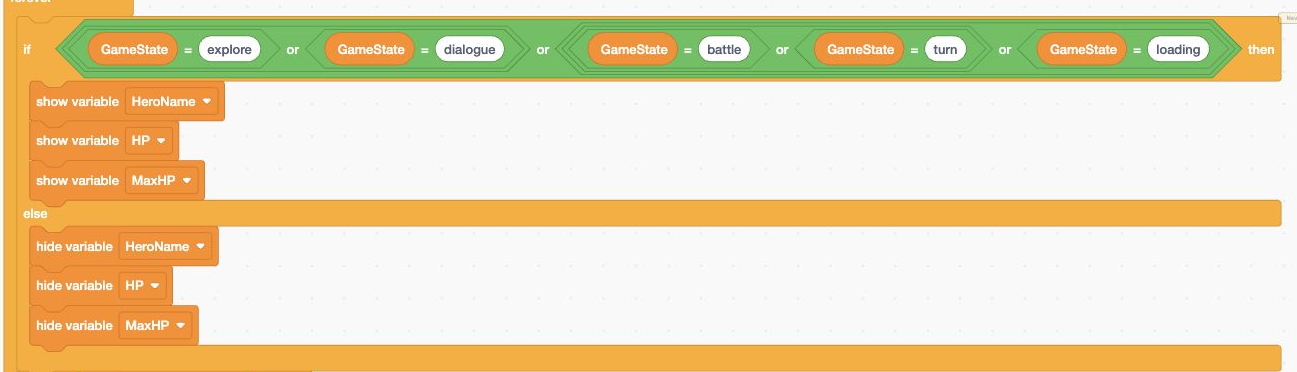
- Add: Add or update the highlighted blocks
Actual Scratch editor · step 22 Select Stage’s thumbnail
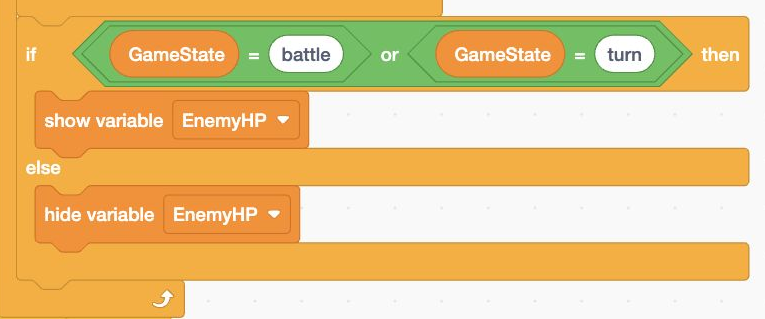
Show enemy health only in battle
At the bottom of that forever loop, add a separate if / else. If GameState is battle or turn, show EnemyHP; otherwise hide EnemyHP. The enemy’s counter should disappear on the map.
- Add: Add or update the highlighted blocks
Actual Scratch editor · step 23 Select Hero
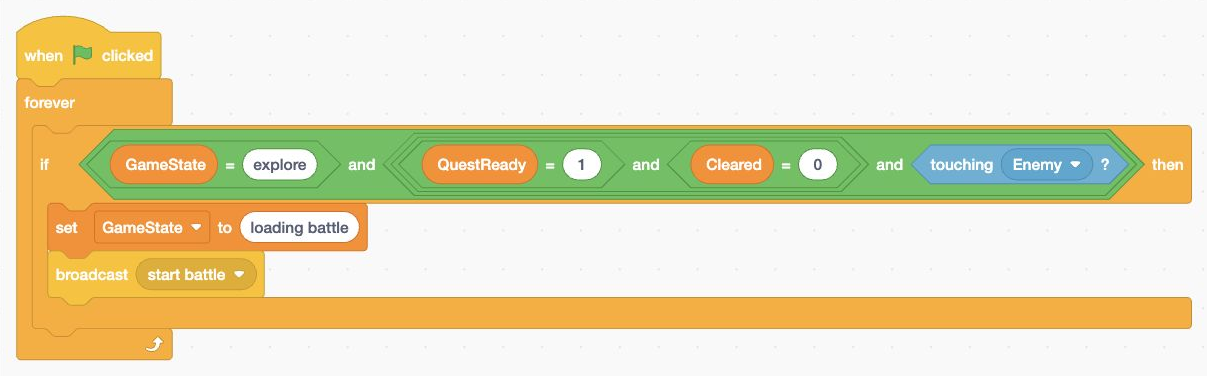
Trigger the first encounter
Select Hero. Build the pictured green-flag loop. Require explore, QuestReady = 1, Cleared = 0 and touching Enemy. Then set GameState to loading battle and broadcast start battle. All four conditions must be true.
- Add: Build these blocks in this order
Actual Scratch editor · step 24 Select Hero
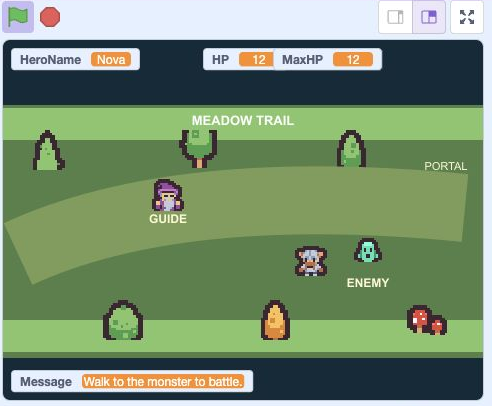
Test accepting a quest
Start a new game. Walk into Enemy before speaking to Guide: no battle should start. Move away, click Guide and type YES, then touch Enemy again.
- Click: Run your test with the green flag
- Check: Check the visible game counters
- Check: Read the result in Message
Actual Scratch editor · step 25 Select Stage’s thumbnail
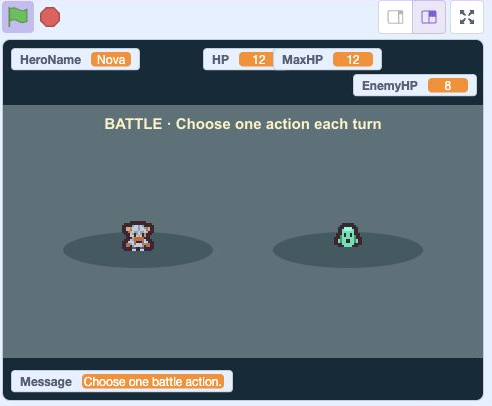
Test the battle scene
Battle Arena shows Hero left and Enemy right. HP is 12; EnemyHP is 8. Drag HP and MaxHP onto the top row, and EnemyHP to the second row, matching the picture. Arrow keys must stop movement. Attack comes next lesson.
- Click: Run your test with the green flag
- Check: Arrange these counters to match
- Check: Read the Message after testing
Actual Scratch editor · step 26
Optional: full block guide and lesson comparison
Save your own project first. Loading an .sb3 replaces the project on screen. This comparison shows the end of lesson 5.
Download lesson 5 comparison · Download all lesson comparisons
Choose the named sprite in Scratch and read its blocks from top to bottom. Indented rows fit inside the block above. Keep one copy of each existing stack.
StageOpen the title screen
- Eventswhen green flag clicked
- Variablesset [GameState] to (menu)
- Looksswitch backdrop to [Title Screen]
- Variablesset [HeroName] to (Explorer)
- Variablesset [Message] to ()
- Variablesset [QuestReady] to (0)
- Variablesset [Area] to (1)
- Variablesset [Cleared] to (0)
- Variablesset [MaxHP] to ((10) + ((2) * (Area)))
- Variablesset [Power] to ((Area) + (2))
- Variablesset [HP] to (MaxHP)
- Variablesset [EnemyHP] to (0)
- Variablesset [EnemyPower] to (0)
StageReset progress and begin
- Eventswhen I receive [new game]
- Variablesset [QuestReady] to (0)
- Variablesset [Area] to (1)
- Variablesset [Cleared] to (0)
- Variablesset [MaxHP] to ((10) + ((2) * (Area)))
- Variablesset [Power] to ((Area) + (2))
- Variablesset [HP] to (MaxHP)
- Variablesset [EnemyHP] to (0)
- Variablesset [EnemyPower] to (0)
- Eventsbroadcast [ask hero name] and wait
- Eventsbroadcast [load area] and wait
- Variablesset [GameState] to (explore)
StageShow the current area
- Eventswhen I receive [load area]
- Looksswitch backdrop to [Meadow Trail]
- Variablesset [Message] to (Click Guide. Type YES to begin.)
StageAsk for a short hero nickname
- Eventswhen I receive [ask hero name]
- Variablesset [GameState] to (naming)
- Sensingask [Choose a made-up hero nickname (1–12 letters).] and wait
- Variablesset [HeroName] to (answer)
- Controlif <<length of [HeroName] = 0> or <length of [HeroName] > 12>> then
- Variablesset [HeroName] to (Explorer)
StageShow information only while playing
- Eventswhen green flag clicked
- Controlforever
- Controlif <<<GameState = explore> or <GameState = dialogue>> or <<<GameState = battle> or <GameState = turn>> or <GameState = loading>>> then
- Variablesshow variable [HeroName]
- Variablesshow variable [HP]
- Variablesshow variable [MaxHP]
- elseSecond slot of the same if/else blockVariableshide variable [HeroName]
- Variableshide variable [HP]
- Variableshide variable [MaxHP]
- Controlif <not <Message = >> then
- Variablesshow variable [Message]
- elseSecond slot of the same if/else blockVariableshide variable [Message]
- Controlif <<GameState = battle> or <GameState = turn>> then
- Variablesshow variable [EnemyHP]
- elseSecond slot of the same if/else blockVariableshide variable [EnemyHP]
StageSet up a fair battle
- Eventswhen I receive [start battle]
- Variablesset [GameState] to (turn)
- Variablesset [EnemyHP] to ((8) * (Area))
- Variablesset [EnemyPower] to ((Area) + (1))
- Looksswitch backdrop to [Battle Arena]
- Variablesset [Message] to (Choose one battle action.)
- Variablesset [GameState] to (battle)
StartShow New Game on the title screen
- Eventswhen green flag clicked
- Controlforever
- Controlif <GameState = menu> then
- Looksshow
- elseSecond slot of the same if/else blockLookshide
StartLock New Game before starting
- Eventswhen this sprite clicked
- Controlif <GameState = menu> then
- Variablesset [GameState] to (loading)
- Eventsbroadcast [new game]
HeroPlace the hero at a safe starting point
- Eventswhen I receive [load area]
- Motiongo to x: (-180) y: (-80)
- Variablesset [XSpeed] to (0)
- Variablesset [YSpeed] to (0)
- Variablesset [AnimTicks] to (0)
- Looksswitch costume to [Stand]
- Motionset rotation style [left-right]
- Motionpoint in direction (90)
HeroShow the hero only inside the adventure
- Eventswhen green flag clicked
- Controlforever
- Controlif <<<GameState = explore> or <GameState = dialogue>> or <<GameState = battle> or <GameState = turn>>> then
- Looksshow
- elseSecond slot of the same if/else blockLookshide
HeroRead arrow keys and move in four directions
- Eventswhen green flag clicked
- Controlforever
- Controlif <GameState = explore> then
- Variablesset [XSpeed] to (0)
- Variablesset [YSpeed] to (0)
- Controlif <key [left arrow] pressed?> then
- Variableschange [XSpeed] by (-4)
- Controlif <key [right arrow] pressed?> then
- Variableschange [XSpeed] by (4)
- Controlif <key [up arrow] pressed?> then
- Variableschange [YSpeed] by (4)
- Controlif <key [down arrow] pressed?> then
- Variableschange [YSpeed] by (-4)
- Motionchange x by (XSpeed)
- Motionchange y by (YSpeed)
- My Blocksstay on map
HeroStay inside the map
- My Blocksdefine stay on map
- Controlif <x position > 215> then
- Motionset x to (215)
- Controlif <x position < -215> then
- Motionset x to (-215)
- Controlif <y position > 85> then
- Motionset y to (85)
- Controlif <y position < -120> then
- Motionset y to (-120)
HeroFace the way you move and animate your feet
- Eventswhen green flag clicked
- Controlforever
- Controlif <GameState = explore> then
- Controlif <XSpeed < 0> then
- Motionpoint in direction (-90)
- Controlif <XSpeed > 0> then
- Motionpoint in direction (90)
- Controlif <<XSpeed = 0> and <YSpeed = 0>> then
- Looksswitch costume to [Stand]
- Variablesset [AnimTicks] to (0)
- elseSecond slot of the same if/else blockVariableschange [AnimTicks] by (1)
- Controlif <AnimTicks > 3> then
- Looksnext costume
- Variablesset [AnimTicks] to (0)
HeroStand on the left for battle
- Eventswhen I receive [start battle]
- Motiongo to x: (-105) y: (-15)
- Looksswitch costume to [Stand]
- Motionpoint in direction (90)
HeroBegin a quest battle by touching the enemy
- Eventswhen green flag clicked
- Controlforever
- Controlif <<GameState = explore> and <<<QuestReady = 1> and <Cleared = 0>> and <touching [Enemy]?>>> then
- Variablesset [GameState] to (loading battle)
- Eventsbroadcast [start battle]
GuidePlace the guide beside the path
- Eventswhen I receive [load area]
- Motiongo to x: (-75) y: (25)
GuideShow the guide on the map
- Eventswhen green flag clicked
- Controlforever
- Controlif <<GameState = explore> or <GameState = dialogue>> then
- Looksshow
- elseSecond slot of the same if/else blockLookshide
GuideListen to the player’s typed choice
- Eventswhen this sprite clicked
- Controlif <GameState = explore> then
- Variablesset [GameState] to (dialogue)
- Sensingask [Type YES to accept the quest, or HINT for help.] and wait
- Controlif <answer = YES> then
- Controlif <Cleared = 0> then
- Variablesset [QuestReady] to (1)
- Variablesset [Message] to (Walk to the monster to battle.)
- elseSecond slot of the same if/else blockVariablesset [Message] to (This area is already clear.)
- elseSecond slot of the same if/else blockControlif <answer = HINT> then
- Variablesset [Message] to (Arrows move. Touch foe after YES.)
- elseSecond slot of the same if/else blockVariablesset [Message] to (Try YES or HINT.)
- Variablesset [GameState] to (explore)
EnemyChoose the monster for this area
- Eventswhen I receive [load area]
- Motiongo to x: (125) y: (-30)
- Variablesset [AnimTicks] to (0)
- Looksswitch costume to [Slime 1]
EnemyHide a defeated enemy
- Eventswhen green flag clicked
- Controlforever
- Controlif <<<<<GameState = explore> or <GameState = dialogue>> or <GameState = loading battle>> and <Cleared = 0>> or <<GameState = battle> or <GameState = turn>>> then
- Looksshow
- elseSecond slot of the same if/else blockLookshide
EnemyBlink while waiting for the hero
- Eventswhen green flag clicked
- Controlforever
- Controlif <<GameState = explore> or <GameState = battle>> then
- Variableschange [AnimTicks] by (1)
- Controlif <AnimTicks = 18> then
- Looksnext costume
- Controlif <AnimTicks > 21> then
- Looksswitch costume to [Slime 1]
- Variablesset [AnimTicks] to (0)
EnemyFace the hero across the battle arena
- Eventswhen I receive [start battle]
- Motiongo to x: (105) y: (-15)
- Looksswitch costume to [Slime 1]
Ready for the next step?
Return here anytime to review.
Lesson discussion
Ask a question or help a classmate. Mr. S can reply here.
Loading discussion…