
Test, Customize, and Play Together
- Finish the Team Missions
- 30 minutes
- Advanced Scratch · Ages 8–11
Finish a cooperative game that treats both players consistently.
Prerequisite: Scratch Space Rescue Adventure. Complete Space Rescue Adventure before building for two players.
Downloads
3 files
Start with a blank Scratch project and extract the art ZIP. Follow each lesson’s upload, variable, message, custom-block and stack checklist. Save your own .sb3 after each target. Checkpoints are optional end-of-lesson comparisons; save before loading one. Allow extra short setup sessions.
Start here: extract this artwork ZIP and use the lesson upload tables to create your own targets. Includes BUILD-FROM-BLANK.md, credits and licenses.
The finished cooperative Scratch game with two pilots, shared missions, meteor clones, and a team log.
Six Scratch projects, one for the end of each 30-minute lesson, with opening and saving instructions.
Your goal
Test independent player state, shared mission rules, every ending and restart, then make one deliberate change and save a working two-player Scratch project.
Your build path · Lesson 6 of 6
Continue the game you built
Open your saved lesson 5 project. Keep its working code. If you need a recovery copy, save your own work first, then open the optional previous lesson checkpoint. It replaces the current project; it does not add sprites.
Work in short sessions. Asset setup and the first reset/controller scripts can take extra sessions in these larger games. Finish one target’s instructions, check it, and save before moving on. The current checkpoint is the end of this lesson, not the starting file.
1. Add only the new assets below
Download this game’s art and sound ZIP. Extract it first: double-click on Mac, use Extract All on Windows, or copy the ZIP’s contents into a normal folder in Chromebook Files. Upload the extracted image/audio files, not the ZIP or license documents.
No new artwork or sounds in this lesson. Keep the targets you already uploaded.
Do not upload one image twice just because two scripts use it. If two different targets use the same file (for example, Gem 1 and Gem 2), make the separately named sprites listed. Keep the downloaded license files with your project folder.
Layer order: after adding sprites, bring them to the front one at a time in this back-to-front order: Rescue Base → Meteor → Blue Pilot → Coral Pilot → Blue Crew → Coral Crew → Start / Restart → Next Mission. Select each named sprite, click a loose Looks → go to front layer block once, then remove that loose block. Keep hidden targets hidden. This keeps the rescue base or terrain behind the moving characters.
2. Make your variables and set their values
A variable is a named box that holds a value. For example, Lives holds how many chances you have left.
Keep variables you made in earlier lessons. Only make the new ones listed here. Inputs for custom blocks are different: you will make those in step 3.
No new variables or lists today.
Choose which counters players can see. In Variables, tick the box beside Mission, Goal, TeamRescued, TotalRescued, BlueRescued, BlueLives, CoralRescued, CoralLives, TimeLeft. Untick the other variable and list boxes. This only shows or hides the counter; it does not change its value. Drag visible counters away from the play area.
3. Name messages and custom blocks before their calls
No new broadcast messages today; keep the messages from earlier lessons.
No new custom block definitions today. Update existing definitions only if the list below says to.
4. Build this lesson’s stacks in small passes
Keep your existing working stacks. Update their contents where marked; do not add a second copy of the same hat or forever loop. The colored guide below contains every real checkpoint block, including unchanged stacks. A rose My Blocks call uses the named block; “define” is a separate definition stack.
Build custom block definitions first, then finite reset receivers, then the green-flag/controller and movement loops. Finish the listed stacks before testing the whole game. Indented rows go inside the enclosing Control block. Use a green and/or block for combined questions; nest another and/or if there are three tests. Reset receivers used by broadcast-and-wait must finish — do not put a forever loop in them.
No new required stacks in this lesson. Test your game, save a new version and make one deliberate improvement.
39 unchanged stacks stay in your project. Save after each completed target. The optional lesson 6 checkpoint is a comparison of the expected end; loading it replaces your own work.
5. Compare the Scratch reference, then run the lesson’s test
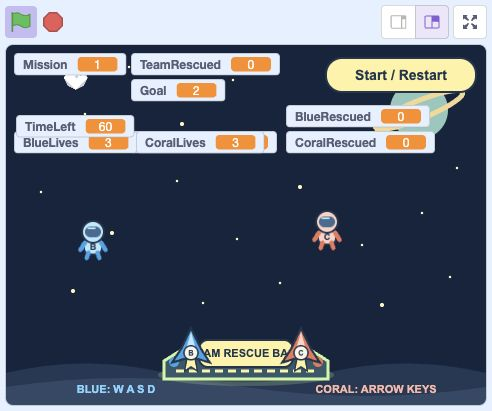
- Click: Click the green flag to test.
- Click: Use Start / Restart for a fresh game.
Targets at this checkpoint: Stage, Blue Pilot, Coral Pilot, Blue Crew, Coral Crew, Rescue Base, Meteor, Start / Restart, Next Mission. Later targets are introduced by their own upload tables. If the artwork is right but the game does nothing, inspect the event hats, selected target, broadcasts and current GameState. If it behaves differently, compare the same numbered checkpoint, not the finished preview’s later features.
Give the game a real two-person test
The final checkpoint contains the same complete systems. Your job is to test the interaction between two pilots, make one intentional change, and explain your design. A game that works for Blue Pilot alone has not yet passed its cooperative test.
Use the website’s finished game to understand the target behavior. Its preview always runs the completed project, not your edited checkpoint. Build and test your own downloaded .sb3 in Scratch. Save your current work before loading any supplied file.
Plan your 30 minutes
Spend 5 minutes watching and tracing, 15 building, 5 testing and explaining, and 5 saving or making one small change. Pause longer when a new idea needs practice.
Run a two-player test plan
Start fresh. Check Mission one, Goal two, TimeLeft 60, three lives for each pilot, zero passengers, zero contributions, zero team and adventure rescues, and an empty MissionLog. Test WASD, all four arrows, diagonal motion, and every stage edge.
- Click: Click the green flag to test.
- Click: Use Start / Restart for a fresh game.
Actual Scratch · Test and Customize Space Rescue Duo — the project view after clicking the green flag. Use the test steps to check movement and game rules. 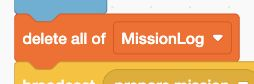
- Add: Build this Stage code stack.
Stage · when I receive [new game]. Pick up Blue Crew and Coral Crew before either pilot returns. Check that each passenger flag changes independently. Deliver one passenger and confirm only the matching contribution counter increases, while TeamRescued and TotalRescued each gain one.
- Click: Click the green flag to test.
- Click: Use Start / Restart for a fresh game.
Actual Scratch · Test and Customize Space Rescue Duo — the project view after clicking the green flag. Use the test steps to check movement and game rules. 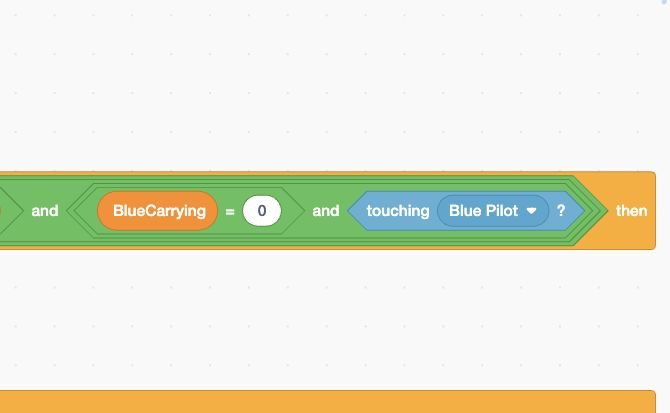
- Add: Build this Blue Crew code stack.
Blue Crew · when I receive [play mission]. Detail 2. 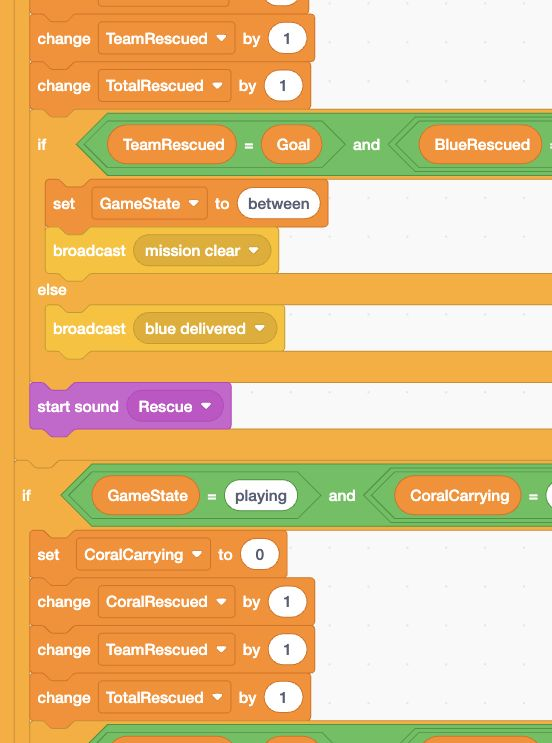
- Add: Build this Rescue Base code stack.
Rescue Base · when I receive [play mission]. Detail 1. Let one pilot fill their own quota while the other waits. The matching crew must stay hidden and the mission must remain open for the other pilot. Wait at Rescue Base empty and check there are no extra points. Repeat the quota rule in a later mission.
- Click: Click the green flag to test.
- Click: Use Start / Restart for a fresh game.
Actual Scratch · Test and Customize Space Rescue Duo — the project view after clicking the green flag. Use the test steps to check movement and game rules. - Add: Build this Blue Crew code stack.
Blue Crew · when I receive [play mission]. Detail 2. ![Actual Scratch close-up of Stage's Code area: if <GameState = between> then; add [join [Mission ] [join [Mission] [join [: Blue ] [join [BlueRescued] [join [ + Coral ] [CoralRescued]]]]]] to [MissionLog]; set [GameState] to (won); broadcast [end mission] and wait; show list [MissionLog].](/images/scratch-tutorials/duo-05-step-04.png)
- Add: Build this Stage code stack.
Stage · when I receive [mission clear]. Detail 1. Test a hit on each pilot. Only that pilot loses a life, returns to its own side, and gets one second of protection. Its passenger stays aboard. A protected Blue Pilot must not protect Coral Pilot. Either pilot reaching zero ends the team run.
- Click: Click the green flag to test.
- Click: Use Start / Restart for a fresh game.
Actual Scratch · Test and Customize Space Rescue Duo — the project view after clicking the green flag. Use the test steps to check movement and game rules. 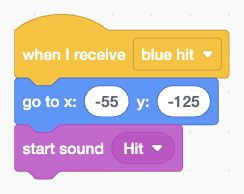
- Add: Build this Blue Pilot message stack.
Blue Pilot · when I receive [blue hit]. Test a time-out with lives remaining. At every ending, both ships, damage, scoring, and the clock must freeze. Restart twice quickly during play, after a loss, and after a win. Old clocks and clones must not survive.
- Click: Click the green flag to test.
- Click: Use Start / Restart for a fresh game.
Actual Scratch · Test and Customize Space Rescue Duo — the project view after clicking the green flag. Use the test steps to check movement and game rules. 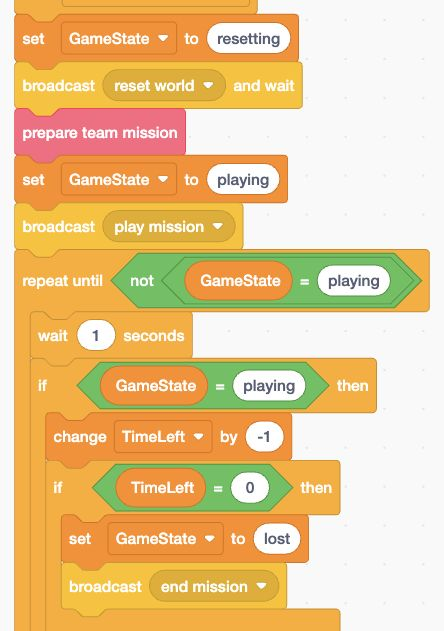
- Add: Build this Stage code stack.
Stage · when I receive [prepare mission]. 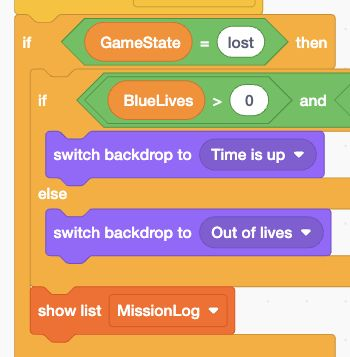
- Add: Build this Stage code stack.
Stage · when I receive [end mission]. Play all three missions. Goals are two, four, and six; meteor counts are two, three, and four. Next Mission preserves both lives, TotalRescued, and earlier log entries. A full restart resets them. Each pilot rescues one, then two, then three crew members. The win has twelve total rescues and three log entries.
- Click: Click the green flag to test.
- Click: Use Start / Restart for a fresh game.
Actual Scratch · Test and Customize Space Rescue Duo — the project view after clicking the green flag. Use the test steps to check movement and game rules. 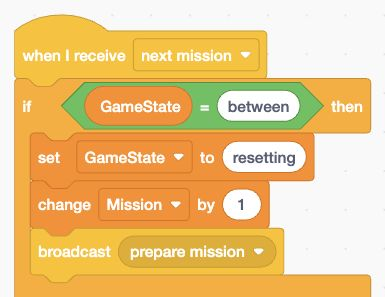
- Add: Build this Stage message stack.
Stage · when I receive [next mission]. - Add: Build this Stage code stack.
Stage · when I receive [mission clear]. Detail 1.
Make one useful change
Give the pilots new labeled costumes, change a feedback sound, or decorate the base. Preserve a clear visual difference between the two roles. Keep a working copy before editing. Changing a costume’s visible shape can change contact, so repeat pickup and meteor tests afterward. Keep the course’s rules unchanged while comparing your project with its guide.
Save and explain
Choose File, then Save to your computer, and use a clear .sb3 name. A Scratch account is optional for local saving. Reopen that saved file and test it with a partner. Explain which values belong to each pilot, which belong to the mission, and which survive to the next mission. Ask an adult before sharing publicly and leave personal information out.
When something goes wrong
Describe the exact keys, values, and state before the problem. Change one rule, retest both pilots, and save Duo Lesson 06 when your explanation matches the game.
Build with blocks · Lesson 6
See the blocks. Try the finished game.
Build these blocks in Scratch. This guide is read-only.
Your lesson’s block guide
Choose the matching sprite in Scratch, then build its stack from top to bottom.
Indented rows fit inside the block above. else marks the second slot of one if/else block.
Each pilot keeps separate carrying, lives, and delivery values. Both pilots must finish their own rescue quota: 1, then 2, then 3 matching crew members. MissionLog is a shared list for the current team adventure.
StageStage: define prepare team mission
- My Blocksdefine prepare team mission
- Variablesset [Goal] to (Mission + Mission)
- Variablesset [TeamRescued] to (0)
- Variablesset [BlueCarrying] to (0)
- Variablesset [BlueRescued] to (0)
- Variablesset [BlueHurtUntil] to (0)
- Variablesset [CoralCarrying] to (0)
- Variablesset [CoralRescued] to (0)
- Variablesset [CoralHurtUntil] to (0)
- Variablesset [TimeLeft] to (60)
- Variableshide list [MissionLog]
- Controlif <Mission = 1> then
- Looksswitch backdrop to [Mission 1]
- elseSecond slot of the same if/else blockControlif <Mission = 2> then
- Looksswitch backdrop to [Mission 2]
- elseSecond slot of the same if/else blockLooksswitch backdrop to [Mission 3]
StageStage: when green flag clicked
- Eventswhen green flag clicked
- Eventsbroadcast [new game]
StageStage: when I receive [new game]
- Eventswhen I receive [new game]
- Controlstop [other scripts in sprite]
- Variablesset [GameState] to (resetting)
- Variablesset [Mission] to (1)
- Variablesset [TotalRescued] to (0)
- Variablesset [BlueLives] to (3)
- Variablesset [CoralLives] to (3)
- Sensingreset timer
- Variablesdelete all of [MissionLog]
- Eventsbroadcast [prepare mission]
StageStage: when I receive [prepare mission]
- Eventswhen I receive [prepare mission]
- Controlstop [other scripts in sprite]
- Variablesset [GameState] to (resetting)
- Eventsbroadcast [reset world] and wait
- My Blockscall prepare team mission
- Variablesset [GameState] to (playing)
- Eventsbroadcast [play mission]
- Controlrepeat until <not <GameState = playing>>
- Controlwait (1) seconds
- Controlif <GameState = playing> then
- Variableschange [TimeLeft] by (-1)
- Controlif <TimeLeft = 0> then
- Variablesset [GameState] to (lost)
- Eventsbroadcast [end mission]
StageStage: when I receive [mission clear]
- Eventswhen I receive [mission clear]
- Controlif <GameState = between> then
- Variablesadd [join [Mission ] [join [Mission] [join [: Blue ] [join [BlueRescued] [join [ + Coral ] [CoralRescued]]]]]] to [MissionLog]
- Controlif <Mission = 3> then
- Variablesset [GameState] to (won)
- Looksswitch backdrop to [Adventure complete]
- elseSecond slot of the same if/else blockLooksswitch backdrop to [Mission complete]
- Eventsbroadcast [end mission] and wait
- Variablesshow list [MissionLog]
StageStage: when I receive [end mission]
- Eventswhen I receive [end mission]
- Controlif <GameState = lost> then
- Controlif <<BlueLives > 0> and <CoralLives > 0>> then
- Looksswitch backdrop to [Time is up]
- elseSecond slot of the same if/else blockLooksswitch backdrop to [Out of lives]
- Variablesshow list [MissionLog]
StageStage: when I receive [next mission]
- Eventswhen I receive [next mission]
- Controlif <GameState = between> then
- Variablesset [GameState] to (resetting)
- Variableschange [Mission] by (1)
- Eventsbroadcast [prepare mission]
Blue PilotBlue Pilot: define move ship (dx) (dy)
- My Blocksdefine move ship (dx) (dy)
- Motionchange x by (dx)
- Motionchange y by (dy)
- Controlif <x position > 210> then
- Motionset x to (210)
- Controlif <x position < -210> then
- Motionset x to (-210)
- Controlif <y position > 40> then
- Motionset y to (40)
- Controlif <y position < -145> then
- Motionset y to (-145)
Blue PilotBlue Pilot: when I receive [reset world]
- Eventswhen I receive [reset world]
- Controlstop [other scripts in sprite]
- Lookshide
- Lookssay []
- Looksclear graphic effects
- Motiongo to x: (-55) y: (-125)
Blue PilotBlue Pilot: when I receive [play mission]
- Eventswhen I receive [play mission]
- Looksshow
- Controlforever
- Controlif <GameState = playing> then
- Controlif <key [d] pressed?> then
- My Blockscall move ship (7) (0)
- Controlif <key [a] pressed?> then
- My Blockscall move ship (-7) (0)
- Controlif <key [w] pressed?> then
- My Blockscall move ship (0) (7)
- Controlif <key [s] pressed?> then
- My Blockscall move ship (0) (-7)
- Controlif <BlueCarrying = 1> then
- Lookssay [Crew aboard!]
- elseSecond slot of the same if/else blockLookssay []
- Controlif <timer < BlueHurtUntil> then
- Looksset [ghost] effect to (45)
- elseSecond slot of the same if/else blockLooksclear graphic effects
Blue PilotBlue Pilot: when I receive [end mission]
- Eventswhen I receive [end mission]
- Controlstop [other scripts in sprite]
- Lookshide
- Lookssay []
- Looksclear graphic effects
Blue PilotBlue Pilot: when I receive [blue hit]
- Eventswhen I receive [blue hit]
- Motiongo to x: (-55) y: (-125)
- Soundstart sound [Hit]
Coral PilotCoral Pilot: define move ship (dx) (dy)
- My Blocksdefine move ship (dx) (dy)
- Motionchange x by (dx)
- Motionchange y by (dy)
- Controlif <x position > 210> then
- Motionset x to (210)
- Controlif <x position < -210> then
- Motionset x to (-210)
- Controlif <y position > 40> then
- Motionset y to (40)
- Controlif <y position < -145> then
- Motionset y to (-145)
Coral PilotCoral Pilot: when I receive [reset world]
- Eventswhen I receive [reset world]
- Controlstop [other scripts in sprite]
- Lookshide
- Lookssay []
- Looksclear graphic effects
- Motiongo to x: (55) y: (-125)
Coral PilotCoral Pilot: when I receive [play mission]
- Eventswhen I receive [play mission]
- Looksshow
- Controlforever
- Controlif <GameState = playing> then
- Controlif <key [right arrow] pressed?> then
- My Blockscall move ship (7) (0)
- Controlif <key [left arrow] pressed?> then
- My Blockscall move ship (-7) (0)
- Controlif <key [up arrow] pressed?> then
- My Blockscall move ship (0) (7)
- Controlif <key [down arrow] pressed?> then
- My Blockscall move ship (0) (-7)
- Controlif <CoralCarrying = 1> then
- Lookssay [Crew aboard!]
- elseSecond slot of the same if/else blockLookssay []
- Controlif <timer < CoralHurtUntil> then
- Looksset [ghost] effect to (45)
- elseSecond slot of the same if/else blockLooksclear graphic effects
Coral PilotCoral Pilot: when I receive [end mission]
- Eventswhen I receive [end mission]
- Controlstop [other scripts in sprite]
- Lookshide
- Lookssay []
- Looksclear graphic effects
Coral PilotCoral Pilot: when I receive [coral hit]
- Eventswhen I receive [coral hit]
- Motiongo to x: (55) y: (-125)
- Soundstart sound [Hit]
Blue CrewBlue Crew: when I receive [reset world]
- Eventswhen I receive [reset world]
- Controlstop [other scripts in sprite]
- Lookshide
- Motiongo to x: (pick random (-180) to (-40)) y: (pick random (-25) to (0))
Blue CrewBlue Crew: when I receive [play mission]
- Eventswhen I receive [play mission]
- Looksshow
- Controlforever
- Controlif <<GameState = playing> and <<BlueRescued < Mission> and <<BlueCarrying = 0> and <touching [Blue Pilot]?>>>> then
- Variablesset [BlueCarrying] to (1)
- Lookshide
- Soundstart sound [Rescue]
Blue CrewBlue Crew: when I receive [blue delivered]
- Eventswhen I receive [blue delivered]
- Controlif <<GameState = playing> and <BlueRescued < Mission>> then
- Motiongo to x: (pick random (-180) to (-40)) y: (pick random (-25) to (0))
- Looksshow
Blue CrewBlue Crew: when I receive [end mission]
- Eventswhen I receive [end mission]
- Controlstop [other scripts in sprite]
- Lookshide
Coral CrewCoral Crew: when I receive [reset world]
- Eventswhen I receive [reset world]
- Controlstop [other scripts in sprite]
- Lookshide
- Motiongo to x: (pick random (40) to (180)) y: (pick random (-25) to (0))
Coral CrewCoral Crew: when I receive [play mission]
- Eventswhen I receive [play mission]
- Looksshow
- Controlforever
- Controlif <<GameState = playing> and <<CoralRescued < Mission> and <<CoralCarrying = 0> and <touching [Coral Pilot]?>>>> then
- Variablesset [CoralCarrying] to (1)
- Lookshide
- Soundstart sound [Rescue]
Coral CrewCoral Crew: when I receive [coral delivered]
- Eventswhen I receive [coral delivered]
- Controlif <<GameState = playing> and <CoralRescued < Mission>> then
- Motiongo to x: (pick random (40) to (180)) y: (pick random (-25) to (0))
- Looksshow
Coral CrewCoral Crew: when I receive [end mission]
- Eventswhen I receive [end mission]
- Controlstop [other scripts in sprite]
- Lookshide
Rescue BaseRescue Base: when I receive [reset world]
- Eventswhen I receive [reset world]
- Controlstop [other scripts in sprite]
- Lookshide
- Motiongo to x: (0) y: (-137)
Rescue BaseRescue Base: when I receive [play mission]
- Eventswhen I receive [play mission]
- Looksshow
- Controlforever
- Controlif <<GameState = playing> and <<BlueCarrying = 1> and <touching [Blue Pilot]?>>> then
- Variablesset [BlueCarrying] to (0)
- Variableschange [BlueRescued] by (1)
- Variableschange [TeamRescued] by (1)
- Variableschange [TotalRescued] by (1)
- Controlif <<TeamRescued = Goal> and <<BlueRescued = Mission> and <CoralRescued = Mission>>> then
- Variablesset [GameState] to (between)
- Eventsbroadcast [mission clear]
- elseSecond slot of the same if/else blockEventsbroadcast [blue delivered]
- Soundstart sound [Rescue]
- Controlif <<GameState = playing> and <<CoralCarrying = 1> and <touching [Coral Pilot]?>>> then
- Variablesset [CoralCarrying] to (0)
- Variableschange [CoralRescued] by (1)
- Variableschange [TeamRescued] by (1)
- Variableschange [TotalRescued] by (1)
- Controlif <<TeamRescued = Goal> and <<BlueRescued = Mission> and <CoralRescued = Mission>>> then
- Variablesset [GameState] to (between)
- Eventsbroadcast [mission clear]
- elseSecond slot of the same if/else blockEventsbroadcast [coral delivered]
- Soundstart sound [Rescue]
Rescue BaseRescue Base: when I receive [end mission]
- Eventswhen I receive [end mission]
- Controlstop [other scripts in sprite]
- Lookshide
MeteorMeteor: define respawn (speed)
- My Blocksdefine respawn (speed)
- Variablesset [FallSpeed · this sprite only] to (speed)
- Motiongo to x: (pick random (-205) to (205)) y: (180)
- Looksshow
MeteorMeteor: when I receive [reset world]
- Eventswhen I receive [reset world]
- Lookshide
- Controlstop [other scripts in sprite]
- Controldelete this clone
MeteorMeteor: when I receive [end mission]
- Eventswhen I receive [end mission]
- Lookshide
- Controlstop [other scripts in sprite]
- Controldelete this clone
MeteorMeteor: when I receive [play mission]
- Eventswhen I receive [play mission]
- Lookshide
- Controlrepeat (Mission + 1)
- Controlcreate clone of [myself]
MeteorMeteor: when I start as a clone
- Controlwhen I start as a clone
- My Blockscall respawn (Mission + 2)
- Controlforever
- Controlif <GameState = playing> then
- Motionchange y by (0 - FallSpeed)
- Controlif <<GameState = playing> and <<touching [Blue Pilot]?> and <timer > BlueHurtUntil>>> then
- Variablesset [BlueHurtUntil] to (timer + 1)
- Variableschange [BlueLives] by (-1)
- My Blockscall respawn (Mission + 2)
- Eventsbroadcast [blue hit]
- Controlif <BlueLives = 0> then
- Variablesset [GameState] to (lost)
- Eventsbroadcast [end mission]
- Controlif <<GameState = playing> and <<touching [Coral Pilot]?> and <timer > CoralHurtUntil>>> then
- Variablesset [CoralHurtUntil] to (timer + 1)
- Variableschange [CoralLives] by (-1)
- My Blockscall respawn (Mission + 2)
- Eventsbroadcast [coral hit]
- Controlif <CoralLives = 0> then
- Variablesset [GameState] to (lost)
- Eventsbroadcast [end mission]
- Controlif <<GameState = playing> and <y position < -175>> then
- My Blockscall respawn (Mission + 2)
Start / RestartStart / Restart: when green flag clicked
- Eventswhen green flag clicked
- Motiongo to x: (155) y: (150)
- Looksshow
Start / RestartStart / Restart: when this sprite clicked
- Eventswhen this sprite clicked
- Eventsbroadcast [new game]
Next MissionNext Mission: when green flag clicked
- Eventswhen green flag clicked
- Motiongo to x: (145) y: (-135)
- Lookshide
Next MissionNext Mission: when I receive [reset world]
- Eventswhen I receive [reset world]
- Controlstop [other scripts in sprite]
- Lookshide
Next MissionNext Mission: when I receive [end mission]
- Eventswhen I receive [end mission]
- Controlif <GameState = between> then
- Looksshow
- elseSecond slot of the same if/else blockLookshide
Next MissionNext Mission: when this sprite clicked
- Eventswhen this sprite clicked
- Controlif <GameState = between> then
- Eventsbroadcast [next mission]
Save your current Scratch project first. Then choose File → Load from your computer and select this .sb3 file.
Open the Scratch editor ↗Opening the editor does not load the download automatically.
Finished game preview
This is the completed game, including features from later lessons. It does not run this lesson’s checkpoint.
Choose the green flag, then use W, A, S, D for Blue Pilot and all four arrow keys for Coral Pilot inside the Scratch player. Open your checkpoint in Scratch to test the blocks for this lesson.
Open the finished game in a new tab ↗Ready for the next step?
Return here anytime to review.
Finished project
Space Rescue Duo
Two players share one keyboard: Blue Pilot uses WASD and Coral Pilot uses the arrow keys. Rescue your matching crew, bring them to base, and complete three team missions. Both pilots must contribute while managing their own lives.
Compare this working example with your own project. It opens in a new tab.
Lesson discussion
Ask a question or help a classmate. Mr. S can reply here.
Loading discussion…