
Add a Meteor and Three Lives
- Meteor Challenge
- 30 minutes
- Intermediate Scratch · Ages 8–11
Keep your Star Catcher. Add a meteor and three lives.
Prerequisite: Star Catcher: Add a Winning Goal. Finish Add a Winning Goal, then extend that same project.
Your goal
Extend your winning Star Catcher game with a meteor and three lives.
Do one step. Match the picture. Then move on.
Download the new Meteor art and sounds. Extract the ZIP first. Keep your Star Catcher artwork.
Select Star
Open your winning Star Catcher
Open your game from “Add a Winning Goal.” Keep Spaceship, Star, Score, and Space. Do not start a new project.
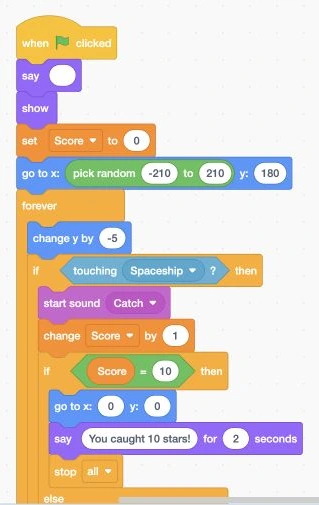
- Keep: Keep your working Star Catcher code
Actual Scratch editor · step 1 Select Star
Save a second copy
Choose File → Save as a copy. Name the copy Meteor Challenge. Keep your original Star Catcher.
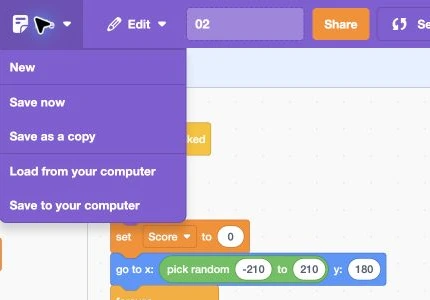
- Click: Open File
- Click: Save as a copy
Actual Scratch editor · step 2 Select Stage’s thumbnail
Choose the Stage thumbnail
Click the small Stage thumbnail beside the sprite list. Backdrops replaces Costumes when Stage is selected.
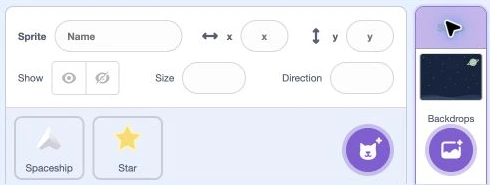
- Click: Click the small Stage picture
Actual Scratch editor · step 3 Select Stage’s thumbnail
Make Lives
Click Variables → Make a Variable. Type Lives. With Stage selected, it is shared automatically. Click OK.
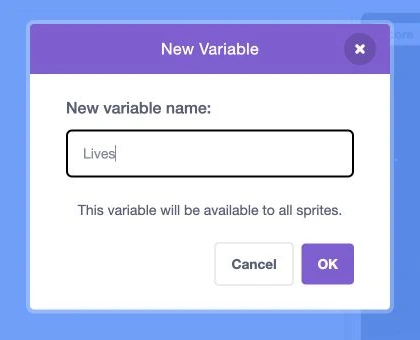
- Add: Type Lives
- Click: Click OK
Actual Scratch editor · step 4 Select Stage’s thumbnail
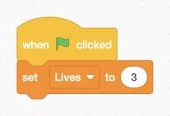
Give yourself three lives
On Stage, snap set Lives to 3 under when green flag clicked. Click the green flag: Lives should show 3.
- Add: Add set Lives to 3
Actual Scratch editor · step 5 Select Stage’s thumbnail
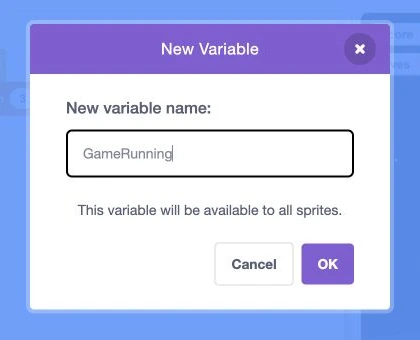
Make GameRunning
Make GameRunning. With Stage selected, it is shared automatically. Click OK, then untick GameRunning to hide its counter. 0 means stopped; 1 means playing.
- Add: Type GameRunning
- Click: Click OK
Actual Scratch editor · step 6 Select Stage’s thumbnail
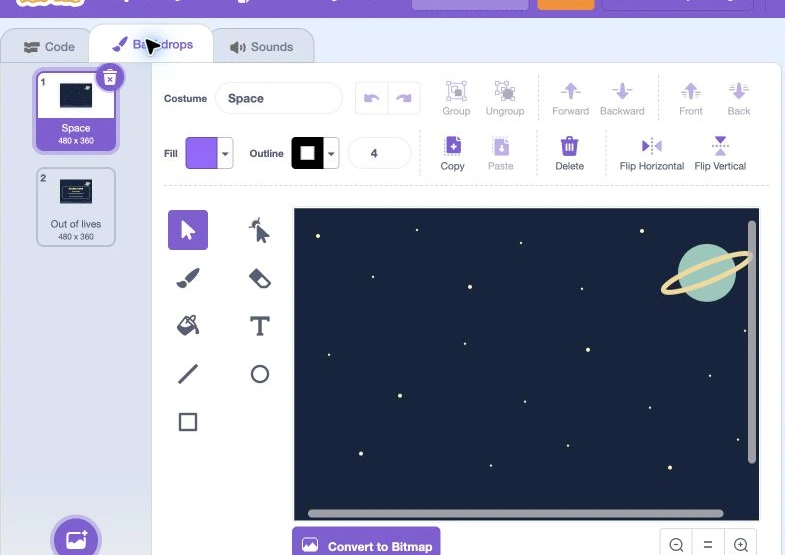
Add the losing backdrop
With Stage selected, open Backdrops → Upload Backdrop. Choose out-of-lives.svg from the extracted Meteor art folder. Name it Out of lives.
- Click: Open Backdrops
- Check: Name this Out of lives
Actual Scratch editor · step 7 Select Stage’s thumbnail
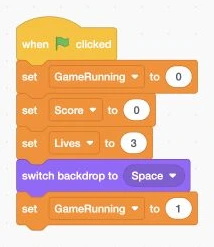
Finish Stage’s starting stack
Copy these six blocks onto Stage. Set GameRunning to 0 first and 1 last. Each new round starts at Score 0 and Lives 3.
- Add: Build these starting values in order
Actual Scratch editor · step 8 Select Star
Remove the ten-point ending
On Star, pull the random-top block out of else. Remove the if Score = 10 / else block. Put random-top after change Score by 1.
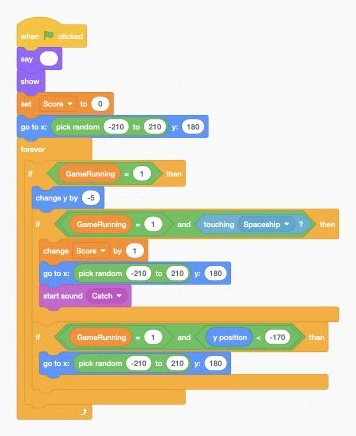
- Check: Keep the catch, score, and random reset
Actual Scratch editor · step 9 Select Star
Move the score reset to Stage
On Star, remove set Score to 0 from its starting blocks. Stage already resets Score. Keep say [blank], show, and the top-position block.
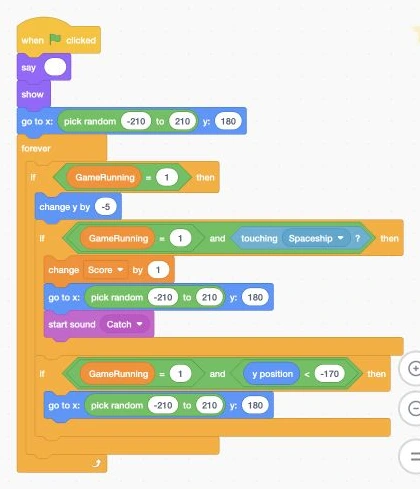
- Keep: Keep these starting blocks without a score reset
Actual Scratch editor · step 10 Select Spaceship
Pause spaceship movement when stopped
Select Spaceship. Inside forever, wrap the four existing arrow-key and edge checks in if GameRunning = 1. Keep their order.
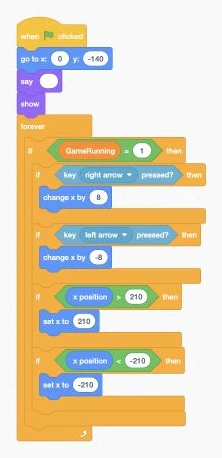
- Add: Put movement inside if GameRunning equals 1
Actual Scratch editor · step 11 Select Star
Pause Star when stopped
Select Star. Inside forever, wrap its fall, catch, and bottom checks in if GameRunning = 1. Match the pictured checks.
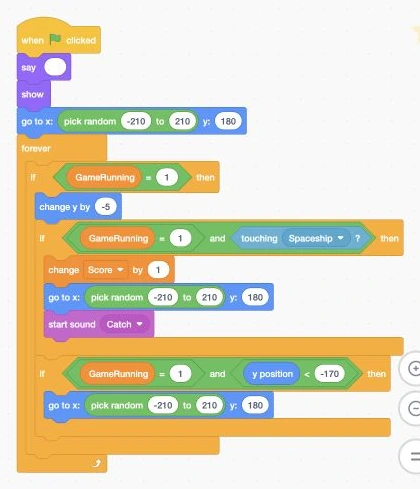
- Add: Wrap the falling loop in this running check
Actual Scratch editor · step 12 Select Star
Upload only the new Meteor sprite
Use Choose a Sprite → Upload Sprite. Choose meteor.png from the extracted Meteor art folder. Keep your existing sprites.
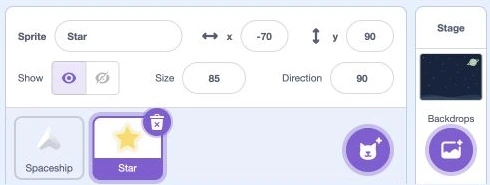
- Click: Point here to upload Meteor
Actual Scratch editor · step 13 Select Meteor
Name and size Meteor
Rename the new sprite Meteor. Set Size to 70 and Direction to 90. Choose Do not rotate.
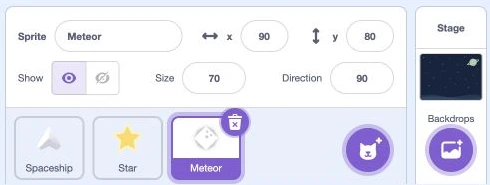
- Add: Name the sprite Meteor
- Add: Set Size to 70
- Check: Keep Direction at 90
Actual Scratch editor · step 14 Select Meteor
Add Meteor’s Hit sound
On Meteor, open Sounds → Upload Sound. Choose hit.wav. Rename the sound Hit.
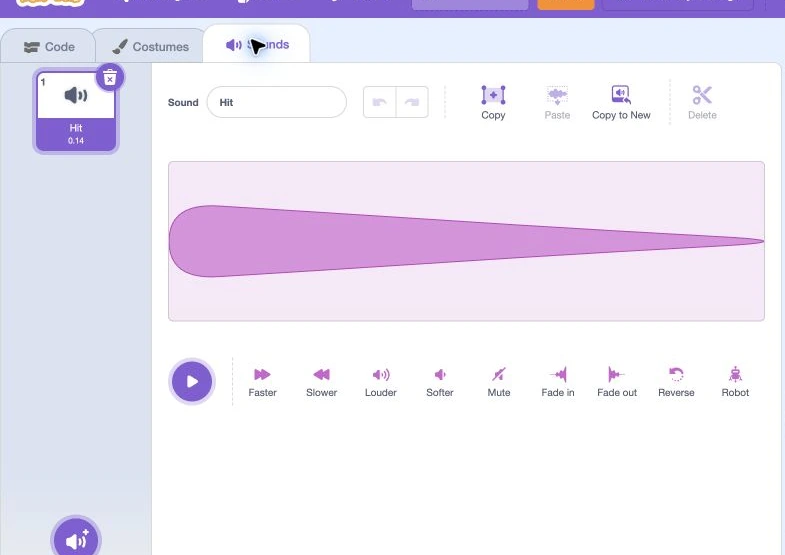
- Click: Open Sounds
- Check: Name this sound Hit
Actual Scratch editor · step 15 Select Meteor
Start Meteor at the top
On Meteor, add these starting blocks. Put pick random -210 to 210 inside x. Set y to 180. Leave the say box empty.
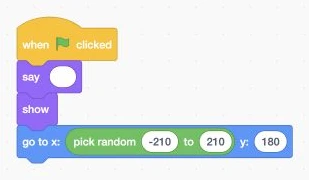
- Add: Start Meteor at a random top position
Actual Scratch editor · step 16 Select Meteor
Make Meteor fall
Under the top-position block, add forever → if GameRunning = 1 → change y by -6. Put the blue block inside the if.
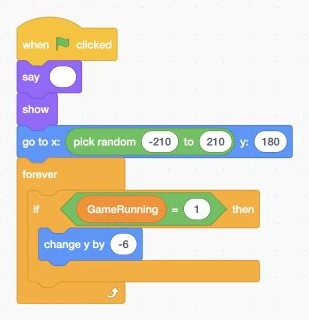
- Add: Add forever, the running check, and falling
Actual Scratch editor · step 17 Select Meteor
Check for a hit
Inside the running if, add another if. Use Operators → and to join GameRunning = 1 with Sensing → touching Spaceship?
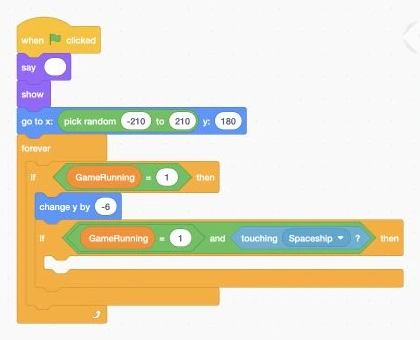
- Add: Add the hit check with and
Actual Scratch editor · step 18 Select Meteor
Lose one life, then move away
Inside the touching if, add change Lives by -1. Next, add the random-top block. This stops one touch taking all three lives.
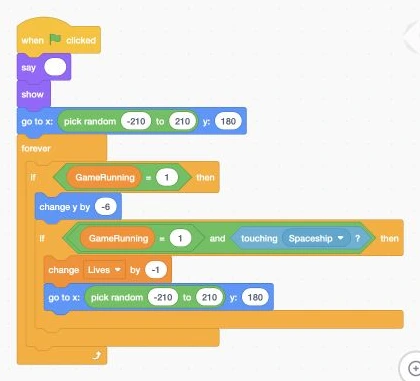
- Add: Lose one life, then reset Meteor
Actual Scratch editor · step 19 Select Meteor
Stop at zero lives
Below the random-top block, add if Lives = 0. Inside it, set GameRunning to 0, switch to Out of lives, then stop all.
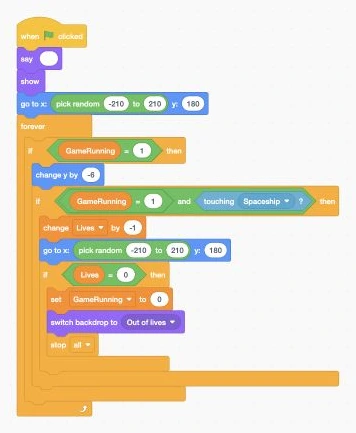
- Add: Add the zero-lives ending inside the hit check
Actual Scratch editor · step 20 Select Meteor
Finish Meteor’s loop
Add start sound Hit after the zero-lives if. Add the separate bottom check shown: a miss sends Meteor to the top without losing a life.
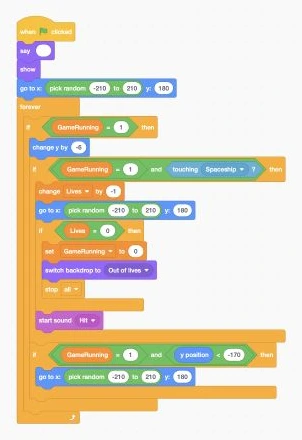
- Add: Add Hit sound and the separate bottom check
Actual Scratch editor · step 21 Select Meteor
Try one catch and one hit
Click the green flag. Catch a star: Score rises by 1. Hit a meteor: Lives goes from 3 to 2. At zero lives, the game stops.
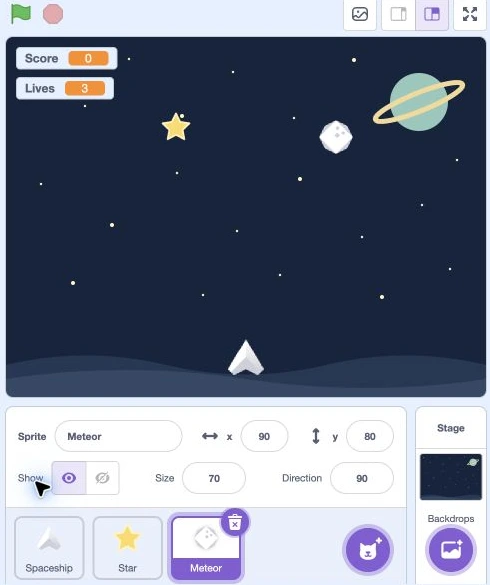
- Click: Click the green flag
- Check: Watch the counters
- Check: Try catching a star
Actual Scratch editor · step 22 Select Meteor
Save lesson 1
Choose File → Save to your computer. Name it Meteor Challenge Lesson 01. Keep the .sb3 ending.
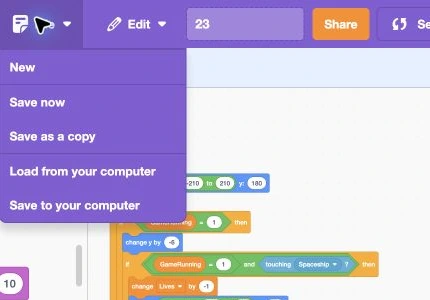
- Click: Open File
- Click: Save to your computer
Actual Scratch editor · step 23
Lost your place? Optional comparison files
Save your own project first. Loading an .sb3 replaces the project on screen.
Star Catcher after Add a Winning Goal — the same starting game, with the ten-point ending still in place.
Optional: full block guide and finished game
Build with blocks · Lesson 1
See the blocks. Try the finished game.
Build these blocks in Scratch. This guide is read-only.
Your lesson’s block guide
Choose the matching sprite in Scratch, then build its stack from top to bottom.
Indented rows fit inside the block above. else marks the second slot of one if/else block.
StageStage: when green flag clicked
- Eventswhen green flag clicked
- Variablesset [GameRunning] to (0)
- Variablesset [Score] to (0)
- Variablesset [Lives] to (3)
- Looksswitch backdrop to [Space]
- Variablesset [GameRunning] to (1)
SpaceshipSpaceship: when green flag clicked
- Eventswhen green flag clicked
- Motiongo to x: (0) y: (-140)
- Lookssay []
- Looksshow
- Controlforever
- Controlif <GameRunning = 1> then
- Controlif <key [right arrow] pressed?> then
- Motionchange x by (8)
- Controlif <key [left arrow] pressed?> then
- Motionchange x by (-8)
- Controlif <x position > 210> then
- Motionset x to (210)
- Controlif <x position < -210> then
- Motionset x to (-210)
StarStar: when green flag clicked
- Eventswhen green flag clicked
- Lookssay []
- Looksshow
- Motiongo to x: (pick random (-210) to (210)) y: (180)
- Controlforever
- Controlif <GameRunning = 1> then
- Motionchange y by (-5)
- Controlif <<GameRunning = 1> and <touching [Spaceship]?>> then
- Variableschange [Score] by (1)
- Motiongo to x: (pick random (-210) to (210)) y: (180)
- Soundstart sound [Catch]
- Controlif <<GameRunning = 1> and <y position < -170>> then
- Motiongo to x: (pick random (-210) to (210)) y: (180)
MeteorMeteor: when green flag clicked
- Eventswhen green flag clicked
- Lookssay []
- Looksshow
- Motiongo to x: (pick random (-210) to (210)) y: (180)
- Controlforever
- Controlif <GameRunning = 1> then
- Motionchange y by (-6)
- Controlif <<GameRunning = 1> and <touching [Spaceship]?>> then
- Variableschange [Lives] by (-1)
- Motiongo to x: (pick random (-210) to (210)) y: (180)
- Controlif <Lives = 0> then
- Variablesset [GameRunning] to (0)
- Looksswitch backdrop to [Out of lives]
- Controlstop [all]
- Soundstart sound [Hit]
- Controlif <<GameRunning = 1> and <y position < -170>> then
- Motiongo to x: (pick random (-210) to (210)) y: (180)
Save your current Scratch project first. Then choose File → Load from your computer and select this .sb3 file.
Open the Scratch editor ↗Opening the editor does not load the download automatically.
Finished game preview
This is the completed game, including features from later lessons. It does not run this lesson’s checkpoint.
Choose the green flag, then use the left and right arrow keys inside the Scratch player. Open your checkpoint in Scratch to test the blocks for this lesson.
Open the finished game in a new tab ↗Ready for the next step?
Return here anytime to review.
Lesson discussion
Ask a question or help a classmate. Mr. S can reply here.
Loading discussion…