
Explore three worlds and collect gems
- Monsters and worlds
- 90 minutes
- Advanced Scratch · After Pixel Quest
Add the exit flag, optional gems and two more worlds.
Recommended preparation: Scratch Pixel Quest. Complete Pixel Quest or bring equivalent Scratch platformer experience. Follow one short pictured action at a time.
Your goal
Advance through three levels while preserving lives and counting each gem once.
Keep the working controls and monsters. A flag leads to the next world. Gems are optional, and each gem can be collected only once per level.
Do one step. Match the picture. Then move on.
Select Stage’s thumbnail
Add the other two worlds
On Stage’s Backdrops tab, upload cavern-backdrop.svg and summit-backdrop.svg. Name them Crystal Cavern and Moonlit Summit. Keep Meadow Steps and the earlier menu/result pictures.
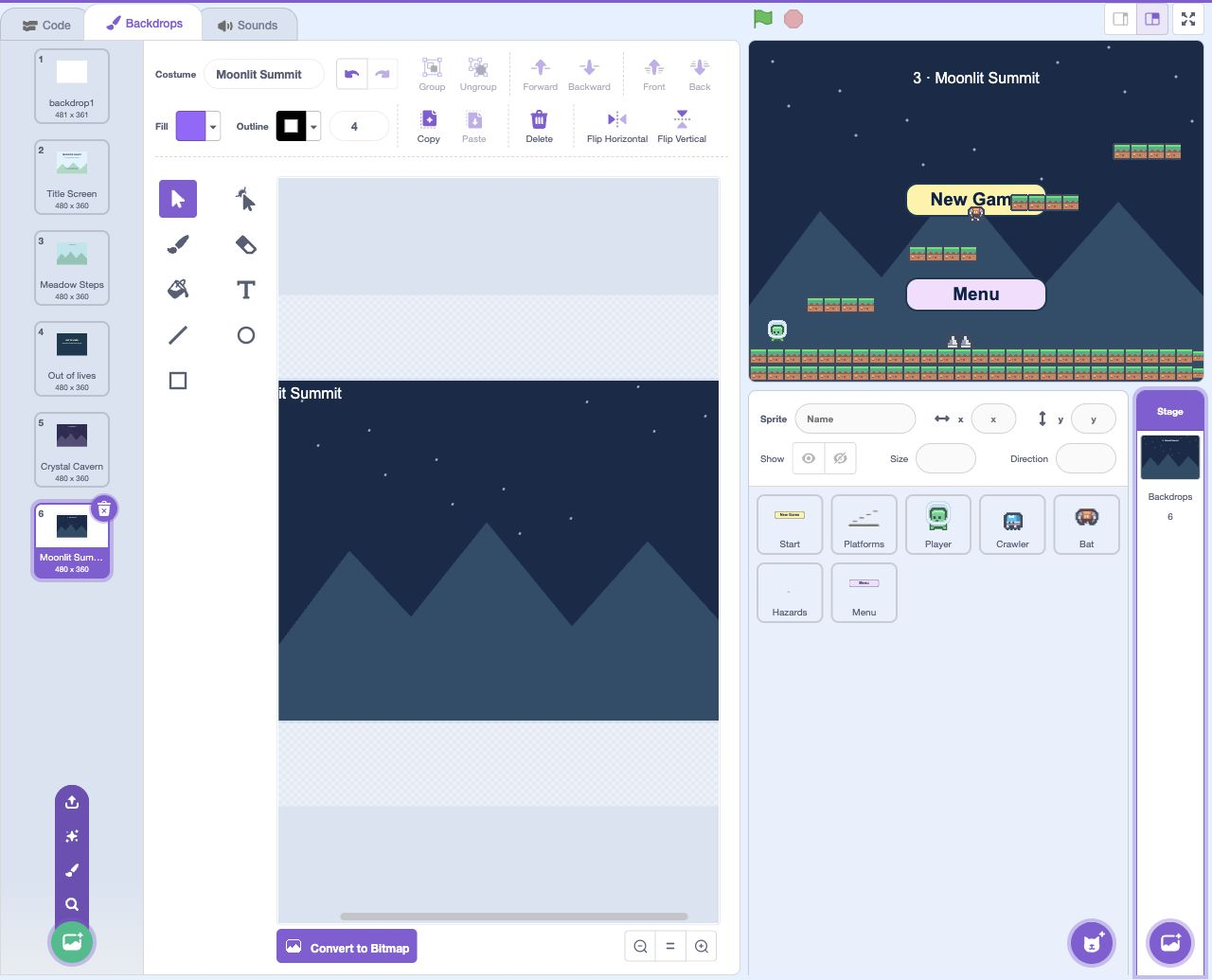
- Click: Open Backdrops
- Click: Point at Choose a Backdrop
- Click: Click Upload Backdrop
- Click: Rename this picture
Actual Scratch editor · step 1 Select Stage’s thumbnail
Add the winning screen
Upload win-screen.svg as a Stage backdrop and name it Adventure complete. The final flag will show it.
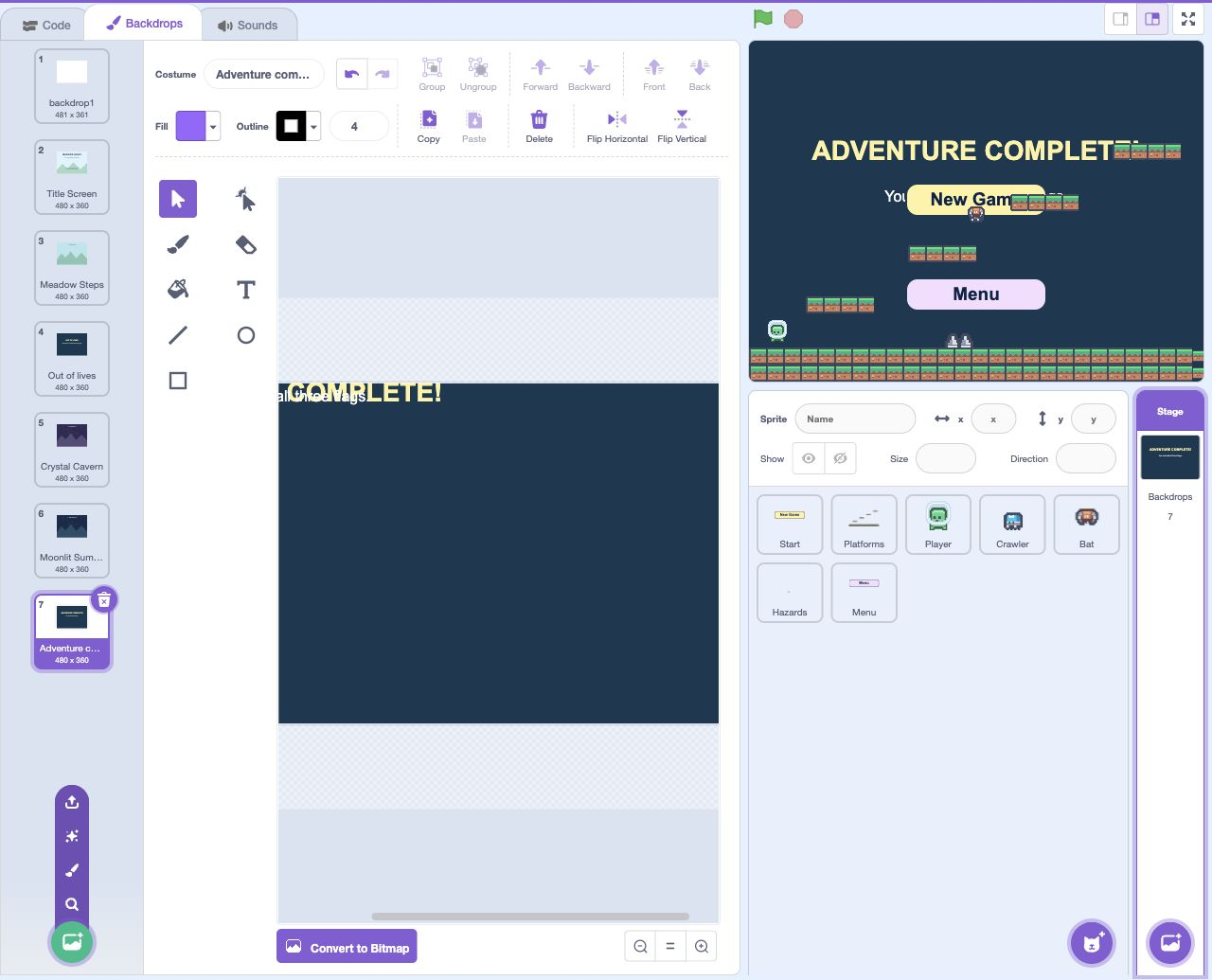
- Click: Open Backdrops
- Click: Point at Choose a Backdrop
- Click: Click Upload Backdrop
- Click: Rename this picture
Actual Scratch editor · step 2 Select Platforms
Add two more platform costumes
Select Platforms → Costumes → Upload Costume. Add cavern-platforms.png and summit-platforms.png. Keep meadow first, cavern second and summit third. Leave x 0, y 0 and Size 100.
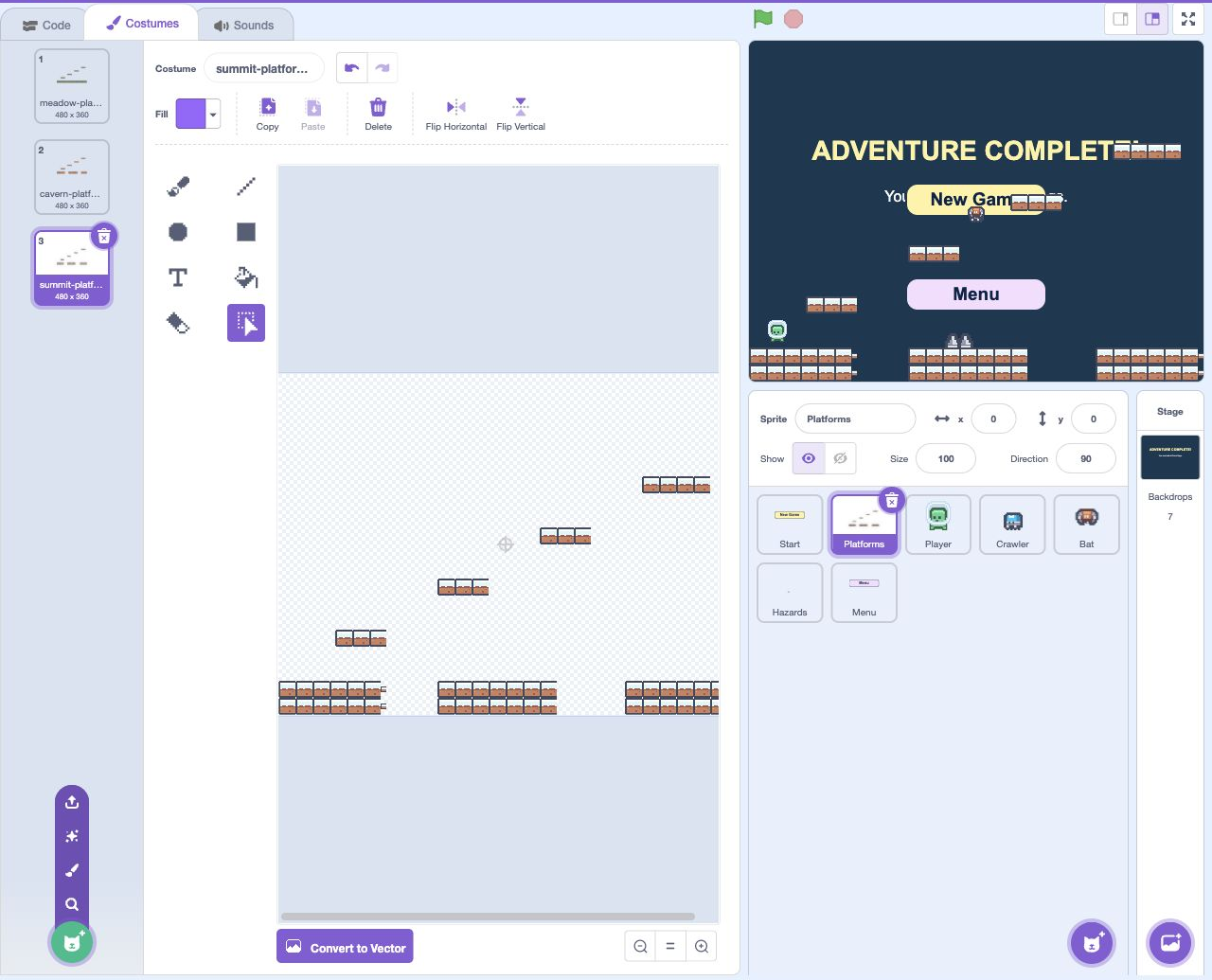
- Click: Open Costumes
- Click: Point at Choose a Costume
- Click: Click Upload Costume
- Click: Rename this picture
Actual Scratch editor · step 3 Select Hazards
Add the matching spike costumes
On Hazards, upload cavern-hazards.png and summit-hazards.png as costumes. Keep meadow, cavern, summit order. Level can now choose the same numbered map on both sprites.
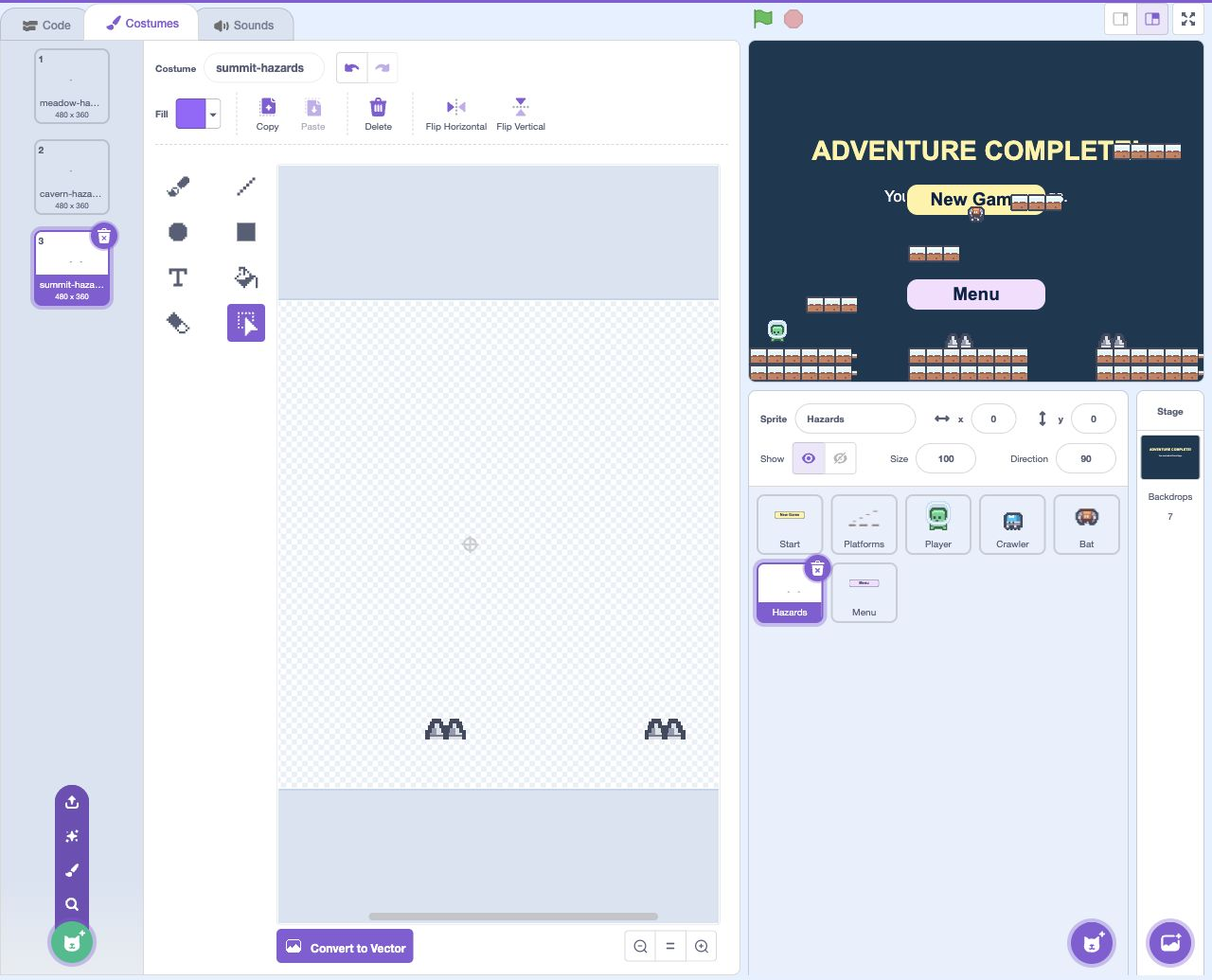
- Click: Open Costumes
- Click: Point at Choose a Costume
- Click: Click Upload Costume
- Click: Rename this picture
Actual Scratch editor · step 4 Select Stage’s thumbnail
Make the gem totals
On Stage, make Banked and Gems. Untick both boxes. Banked remembers gems from completed worlds. Gems displays the adventure’s total.
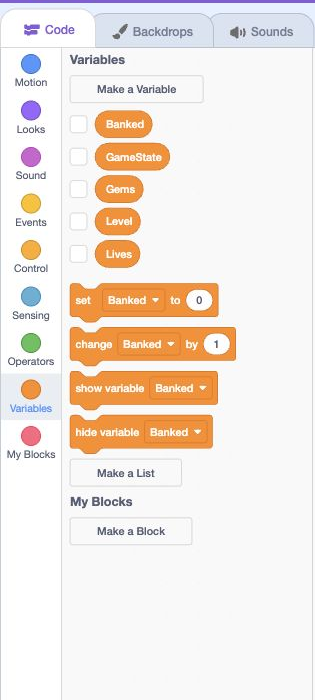
- Click: Make each named variable
- Click: Untick the variable monitor boxes
Actual Scratch editor · step 5 Select Stage’s thumbnail
Remember which gems were taken
On Stage, make Gem1Taken, Gem2Taken and Gem3Taken. Untick their boxes. Each flag is 0 before its gem is taken, or 1 afterward.
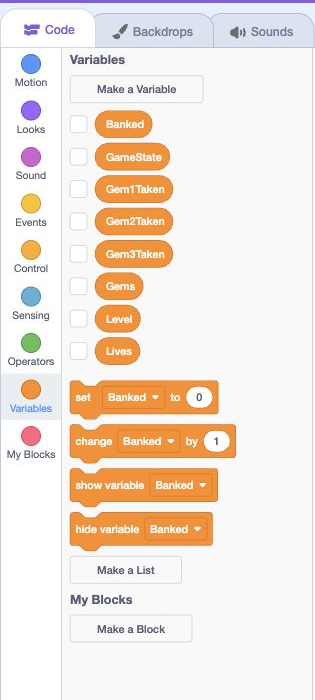
- Click: Make each named variable
- Click: Untick the variable monitor boxes
Actual Scratch editor · step 6 Select Stage’s thumbnail
Clear the gem flags for a new game
In Stage’s new game stack, set Banked, Gems and all three Taken flags to 0 before loading. Copy those five resets into the green-flag stack too. Hide Gems while the menu is open.
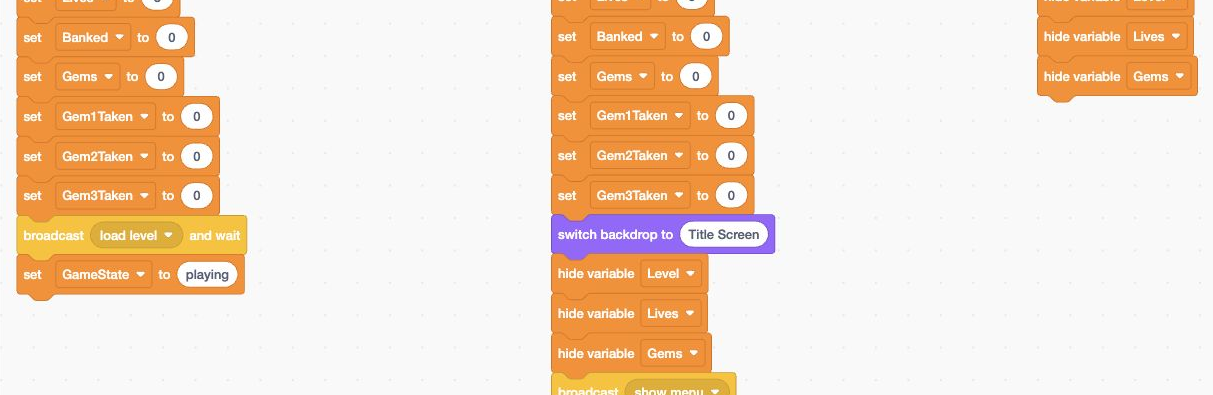
- Add: Build stack 1 in this order
- Add: Build stack 2 in this order
- Add: Build stack 3 in this order
Actual Scratch editor · step 7 Select Stage’s thumbnail
Choose the backdrop for Level
Update Stage’s load level receiver. Level 1 chooses Meadow Steps; Level 2 chooses Crystal Cavern; otherwise choose Moonlit Summit. Set Gems to Banked plus the three Taken flags, then show Gems.
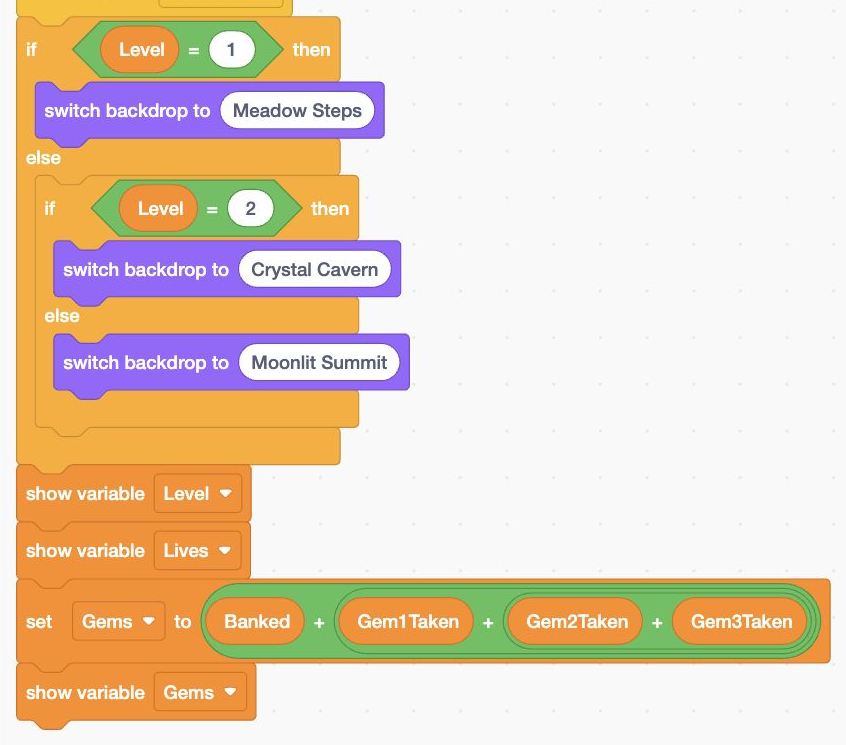
- Add: Add or update the highlighted blocks
Actual Scratch editor · step 8 Add Flag
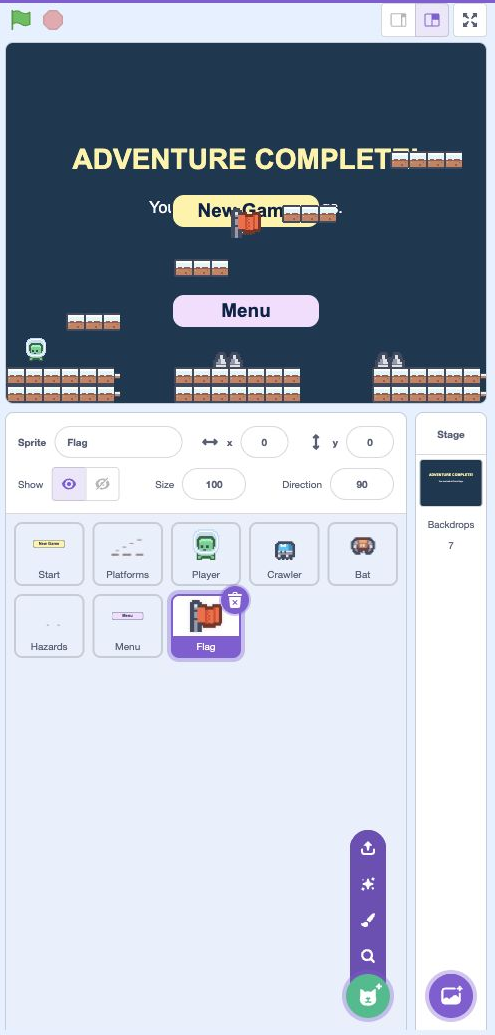
Upload the exit flag
Upload flag.png as a new sprite named Flag. Keep Size 100. Its load receiver will place it on the highest platform.
- Click: Point at Choose a Sprite
- Click: Click Upload Sprite
Actual Scratch editor · step 9 Select Flag
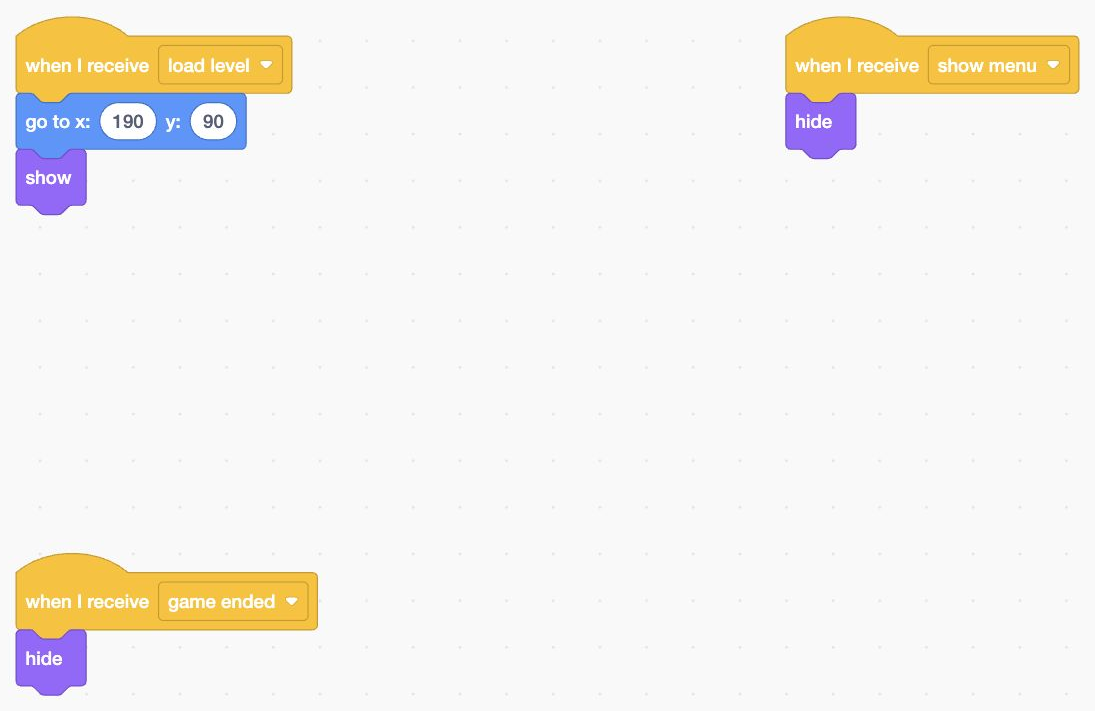
Place and hide the flag
On Flag, add load level → go to x 190 y 90 → show. Copy Player’s show menu → hide and game ended → hide receivers onto Flag.
- Add: Build this left stack
- Add: Build this right stack
Actual Scratch editor · step 10 Select Player
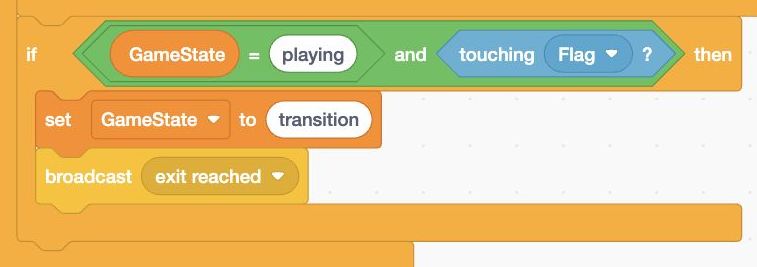
Ask to leave a level only once
At the end of Player’s playing loop, add if GameState = playing and touching Flag. Inside it, set GameState to transition, then broadcast exit reached.
- Add: Add or update the highlighted blocks
Actual Scratch editor · step 11 Select Stage’s thumbnail
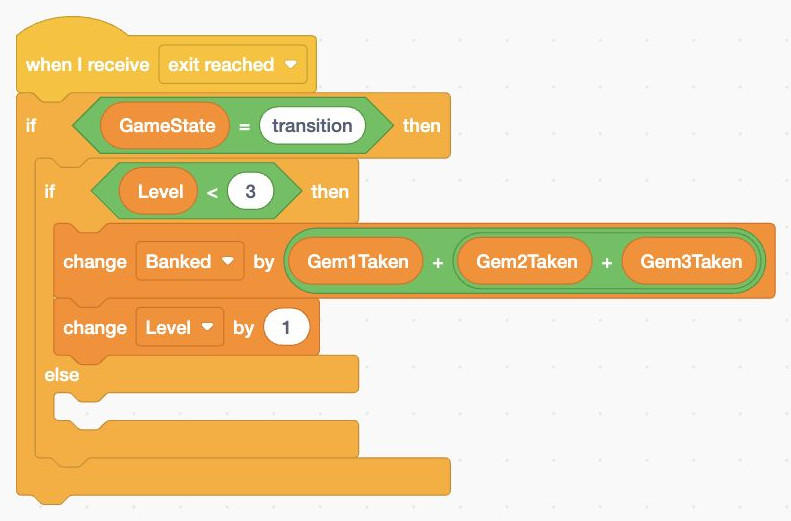
Keep gems from the finished world
On Stage, start the exit reached receiver shown. Inside GameState = transition, add if Level < 3 then/else. In the top branch, add the three Taken flags to Banked, then change Level by 1.
- Add: Add or update the highlighted blocks
Actual Scratch editor · step 12 Select Stage’s thumbnail
Load the next world
Below change Level, set Gem1Taken, Gem2Taken and Gem3Taken to 0. Broadcast load level and wait, then set GameState to playing. Keep all five blocks in the Level < 3 branch.
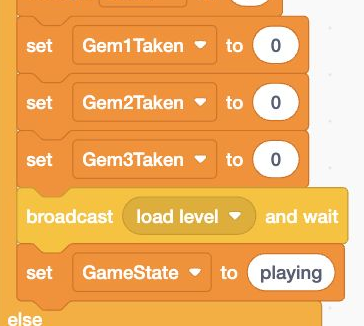
- Add: Add or update the highlighted blocks
Actual Scratch editor · step 13 Select Stage’s thumbnail
Win after the third flag
In the Level check’s else branch, set GameState to won, switch backdrop to Adventure complete and broadcast game ended. Gems are optional; reaching the flag completes a world.
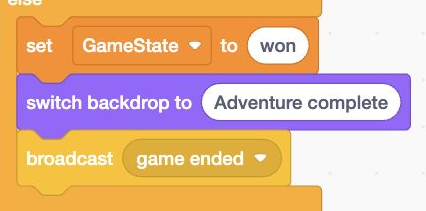
- Add: Add or update the highlighted blocks
Actual Scratch editor · step 14 Select Menu
Let Menu work after either ending
In both Menu stacks, change the condition to GameState = lost or GameState = won. Keep go to front layer after show. Menu now works after a win too.

- Add: Build this left stack
- Add: Build this right stack
Actual Scratch editor · step 15 Add Gem1
Upload the first gem
Upload gem.png as a new sprite named Gem1. Keep Size 100. Do not upload it as a backdrop.
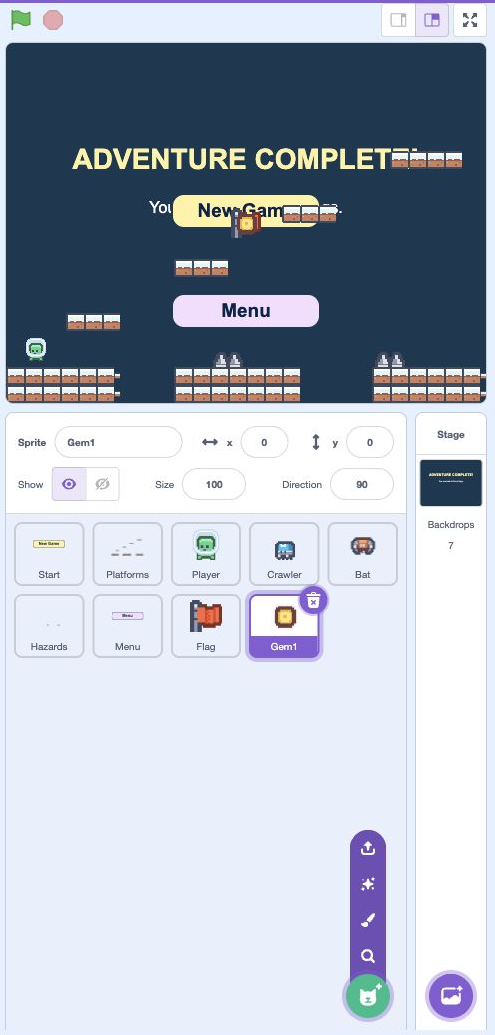
- Click: Point at Choose a Sprite
- Click: Click Upload Sprite
Actual Scratch editor · step 16 Select Gem1
Restore whether Gem1 is already taken
On Gem1, add load level → go to x -144 y -60 → if Gem1Taken = 0 show, else hide. The flag controls whether this gem is still available.
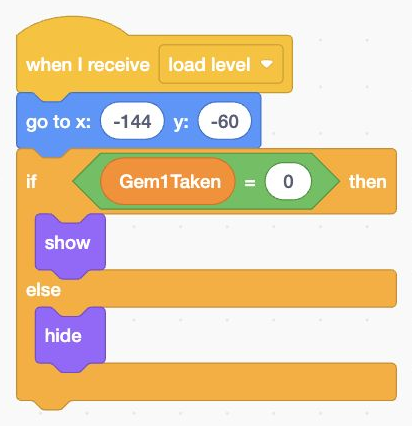
- Add: Add or update the highlighted blocks
Actual Scratch editor · step 17 Select Gem1
Collect Gem1 only once
Add the pictured green-flag loop. It checks GameState = playing, Gem1Taken = 0 and touching Player. Inside that check, set Gem1Taken to 1 and hide.
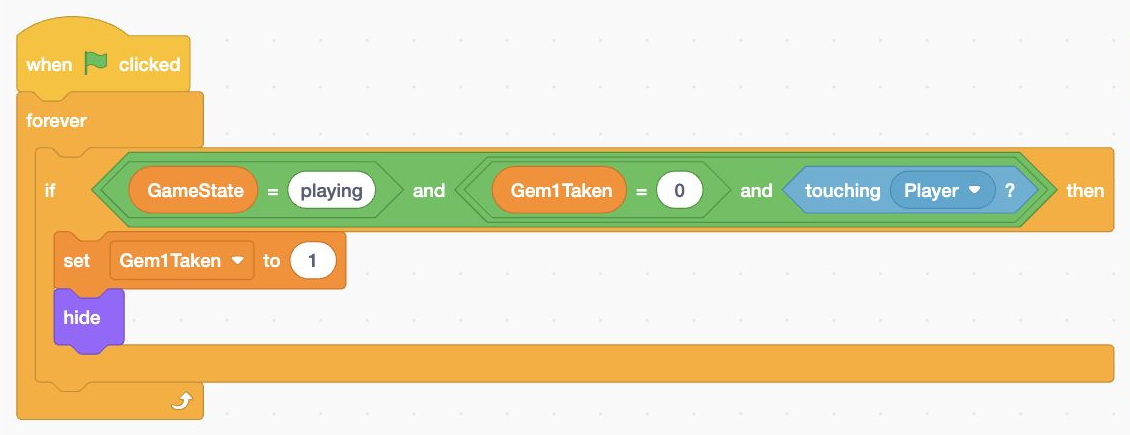
- Add: Add or update the highlighted blocks
Actual Scratch editor · step 18 Select Gem1
Update the displayed total
After hide, set Gems to Banked + Gem1Taken + Gem2Taken + Gem3Taken. Nest the green plus blocks as shown. Each Taken flag adds either 0 or 1.

- Add: Build these blocks in this order
Actual Scratch editor · step 19 Select Gem1
Hide Gem1 outside the world
Copy Player’s show menu → hide and game ended → hide receivers onto Gem1. These do not change its Taken flag.

- Add: Build this left stack
- Add: Build this right stack
Actual Scratch editor · step 20 Select Gem2
Make Gem2 from the working gem
Duplicate Gem1 and rename the copy Gem2. Set its load position to x -36 y -6. Change the load/collect tests and set-variable block to Gem2Taken. Keep the Gems total’s sum of all three flags unchanged.
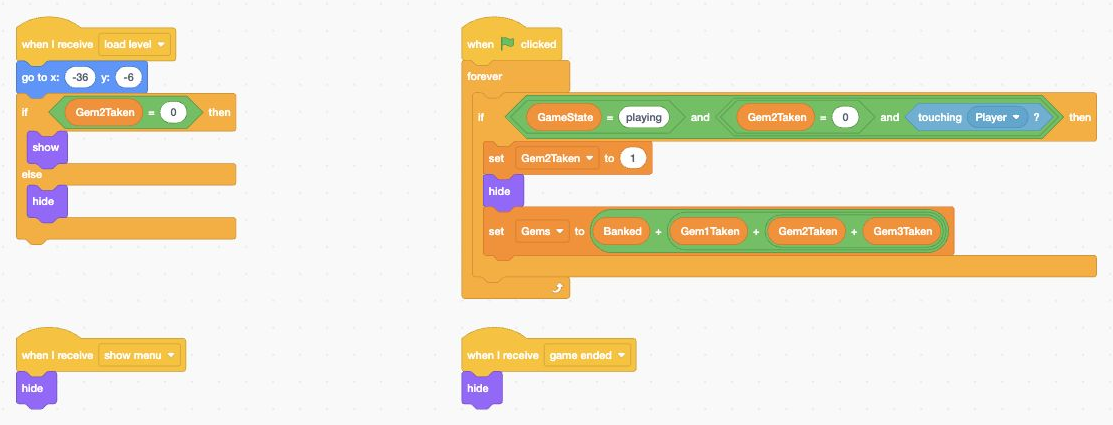
- Add: Build this left stack
- Add: Build this right stack
Actual Scratch editor · step 21 Select Gem3
Make Gem3 the same way
Duplicate Gem1 and rename the copy Gem3. Set its load position to x 72 y 48. Use Gem3Taken in its load/collect tests and set-variable block. Keep all three flags in the Gems total.
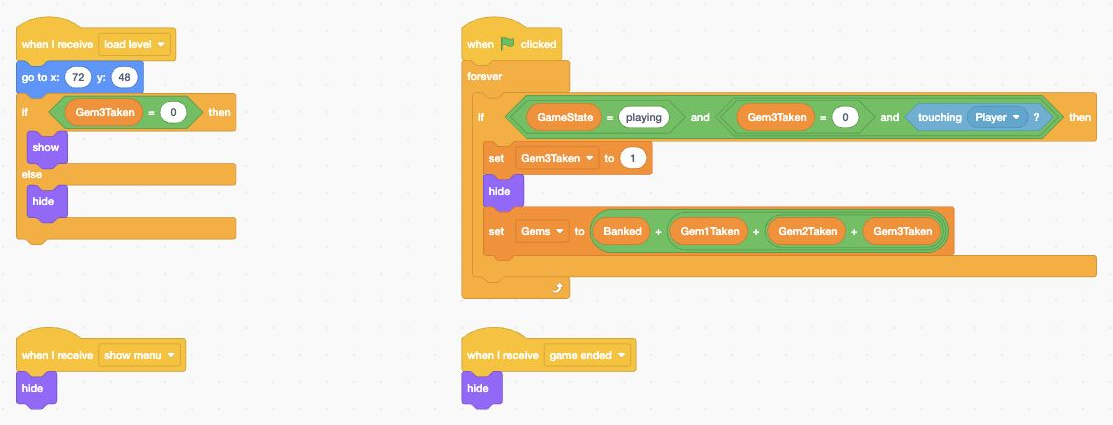
- Add: Build this left stack
- Add: Build this right stack
Actual Scratch editor · step 22 Select Stage’s thumbnail
Test all three worlds and save
Start a game. Collect a gem once, reach each flag, and watch the world change. Lives carry forward. After the third flag, Menu still works. Save as Monster Quest Lesson 07.
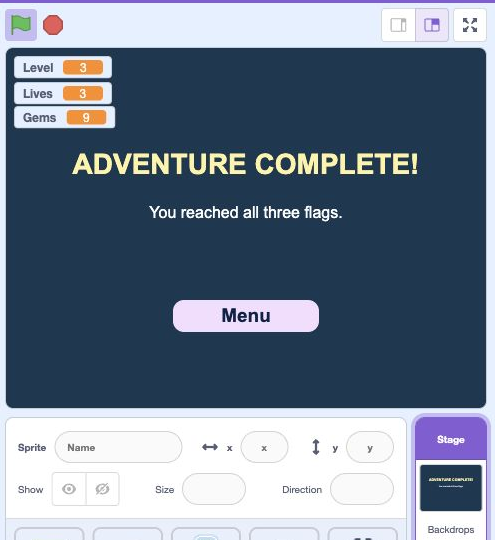
- Click: Run your test with the green flag
- Check: Check the game counters and messages
- Check: Run the movement or adventure test here
Actual Scratch editor · step 23
Optional: full block guide and lesson comparison
Save your own project first. Loading an .sb3 replaces the project on screen. This comparison shows the end of lesson 7.
Download lesson 7 comparison · Download all lesson comparisons
Choose the named sprite in Scratch and read its blocks from top to bottom. Indented rows fit inside the block above. Keep one copy of each existing stack.
StageOpen the title screen
- Eventswhen green flag clicked
- Variablesset [GameState] to (menu)
- Variablesset [Level] to (1)
- Variablesset [Lives] to (3)
- Variablesset [Banked] to (0)
- Variablesset [Gems] to (0)
- Variablesset [Gem1Taken] to (0)
- Variablesset [Gem2Taken] to (0)
- Variablesset [Gem3Taken] to (0)
- Looksswitch backdrop to [Title Screen]
- Variableshide variable [Level]
- Variableshide variable [Lives]
- Variableshide variable [Gems]
- Eventsbroadcast [show menu]
StageBegin a new game
- Eventswhen I receive [new game]
- Variablesset [GameState] to (loading)
- Variablesset [Level] to (1)
- Variablesset [Lives] to (3)
- Variablesset [Banked] to (0)
- Variablesset [Gems] to (0)
- Variablesset [Gem1Taken] to (0)
- Variablesset [Gem2Taken] to (0)
- Variablesset [Gem3Taken] to (0)
- Eventsbroadcast [load level] and wait
- Variablesset [GameState] to (playing)
StageLoad the selected level backdrop and counters
- Eventswhen I receive [load level]
- Controlif <Level = 1> then
- Looksswitch backdrop to [Meadow Steps]
- elseSecond slot of the same if/else blockControlif <Level = 2> then
- Looksswitch backdrop to [Crystal Cavern]
- elseSecond slot of the same if/else blockLooksswitch backdrop to [Moonlit Summit]
- Variablesshow variable [Level]
- Variablesshow variable [Lives]
- Variablesset [Gems] to ((Banked) + ((Gem1Taken) + ((Gem2Taken) + (Gem3Taken))))
- Variablesshow variable [Gems]
StageReturn safely to the title screen
- Eventswhen I receive [show menu]
- Variablesset [GameState] to (menu)
- Looksswitch backdrop to [Title Screen]
- Variableshide variable [Level]
- Variableshide variable [Lives]
- Variableshide variable [Gems]
StageLose one life and respawn or end
- Eventswhen I receive [player hit]
- Controlif <GameState = hurt> then
- Variableschange [Lives] by (-1)
- Controlif <Lives > 0> then
- Eventsbroadcast [respawn] and wait
- Variablesset [GameState] to (playing)
- elseSecond slot of the same if/else blockVariablesset [GameState] to (lost)
- Looksswitch backdrop to [Out of lives]
- Eventsbroadcast [game ended]
StageBank gems and advance to the next flag
- Eventswhen I receive [exit reached]
- Controlif <GameState = transition> then
- Controlif <Level < 3> then
- Variableschange [Banked] by ((Gem1Taken) + ((Gem2Taken) + (Gem3Taken)))
- Variableschange [Level] by (1)
- Variablesset [Gem1Taken] to (0)
- Variablesset [Gem2Taken] to (0)
- Variablesset [Gem3Taken] to (0)
- Eventsbroadcast [load level] and wait
- Variablesset [GameState] to (playing)
- elseSecond slot of the same if/else blockVariablesset [GameState] to (won)
- Looksswitch backdrop to [Adventure complete]
- Eventsbroadcast [game ended]
PlatformsLoad the level platforms costume
- Eventswhen I receive [load level]
- Motiongo to x: (0) y: (0)
- Looksswitch costume to [Level]
- Looksshow
PlatformsHide platforms on the menu
- Eventswhen I receive [show menu]
- Lookshide
PlatformsHide platforms on result screens
- Eventswhen I receive [game ended]
- Lookshide
PlayerPlace the explorer at the level start
- Eventswhen I receive [load level]
- Motiongo to x: (-210) y: (-126)
- Variablesset [XSpeed] to (0)
- Variablesset [YSpeed] to (0)
- Variablesset [Grounded] to (0)
- Variablesset [JumpHeld] to (0)
- Variablesset [StepY] to (-1)
- Variablesset [AnimTicks] to (0)
- Looksswitch costume to [Walk 1]
- Motionset rotation style [left-right]
- Motionpoint in direction (90)
- Variablesset [Invincible] to (0)
- Looksshow
PlayerHide the explorer on the title screen
- Eventswhen I receive [show menu]
- Lookshide
PlayerMove one horizontal pixel at a time
- My Blocksdefine move horizontally
- Controlrepeat (abs of (XSpeed))
- Motionchange x by ((XSpeed) / (abs of (XSpeed)))
- Controlif <touching [Platforms]?> then
- Motionchange x by ((0) - ((XSpeed) / (abs of (XSpeed))))
- Controlif <x position > 225> then
- Motionset x to (225)
- Controlif <x position < -225> then
- Motionset x to (-225)
PlayerLand on solid platforms a pixel at a time
- My Blocksdefine move vertically
- Variablesset [Grounded] to (0)
- Variablesset [StepY] to (-1)
- Controlif <YSpeed > 0> then
- Variablesset [StepY] to (1)
- Controlrepeat (abs of (round (YSpeed)))
- Motionchange y by (StepY)
- Controlif <touching [Platforms]?> then
- Motionchange y by ((0) - (StepY))
- Controlif <StepY < 0> then
- Variablesset [Grounded] to (1)
- Variablesset [YSpeed] to (0)
PlayerRead keys, move, jump and check the active adventure
- Eventswhen green flag clicked
- Controlforever
- Controlif <GameState = playing> then
- Variablesset [XSpeed] to (0)
- Controlif <key [left arrow] pressed?> then
- Variableschange [XSpeed] by (-4)
- Controlif <key [right arrow] pressed?> then
- Variableschange [XSpeed] by (4)
- My Blocksmove horizontally
- Controlif <key [space] pressed?> then
- Controlif <<JumpHeld = 0> and <Grounded = 1>> then
- Variablesset [YSpeed] to (11)
- Variablesset [JumpHeld] to (1)
- elseSecond slot of the same if/else blockVariablesset [JumpHeld] to (0)
- Variableschange [YSpeed] by (-0.7)
- Controlif <YSpeed < -12> then
- Variablesset [YSpeed] to (-12)
- My Blocksmove vertically
- Controlif <XSpeed < 0> then
- Motionpoint in direction (-90)
- Controlif <XSpeed > 0> then
- Motionpoint in direction (90)
- Controlif <Grounded = 0> then
- Looksswitch costume to [Walk 2]
- elseSecond slot of the same if/else blockControlif <XSpeed = 0> then
- Looksswitch costume to [Walk 1]
- Variablesset [AnimTicks] to (0)
- elseSecond slot of the same if/else blockVariableschange [AnimTicks] by (1)
- Controlif <AnimTicks > 3> then
- Looksnext costume
- Variablesset [AnimTicks] to (0)
- Controlif <Invincible > 0> then
- Variableschange [Invincible] by (-1)
- Controlif <<Invincible = 0> and <<<touching [Hazards]?> or <touching [Crawler]?>> or <<touching [Bat]?> or <y position < -170>>>> then
- Variablesset [GameState] to (hurt)
- Eventsbroadcast [player hit]
- Controlif <<GameState = playing> and <touching [Flag]?>> then
- Variablesset [GameState] to (transition)
- Eventsbroadcast [exit reached]
PlayerReset motion and give brief hit protection
- Eventswhen I receive [respawn]
- Motiongo to x: (-210) y: (-126)
- Variablesset [XSpeed] to (0)
- Variablesset [YSpeed] to (0)
- Variablesset [Grounded] to (0)
- Variablesset [JumpHeld] to (0)
- Variablesset [StepY] to (-1)
- Variablesset [AnimTicks] to (0)
- Looksswitch costume to [Walk 1]
- Motionset rotation style [left-right]
- Motionpoint in direction (90)
- Variablesset [Invincible] to (30)
- Looksshow
PlayerHide the explorer when a run ends
- Eventswhen I receive [game ended]
- Lookshide
CrawlerPlace and reset Crawler
- Eventswhen I receive [load level]
- Motiongo to x: (170) y: (-132)
- Variablesset [AnimTicks] to (0)
- Variablesset [Speed] to (2)
- Looksswitch costume to [1]
- Looksshow
CrawlerHide Crawler on the menu
- Eventswhen I receive [show menu]
- Lookshide
CrawlerPatrol the floor and animate the crawler
- Eventswhen green flag clicked
- Controlforever
- Controlif <GameState = playing> then
- Motionchange x by (Speed)
- Controlif <x position > 206> then
- Variablesset [Speed] to (-2)
- Controlif <x position < 154> then
- Variablesset [Speed] to (2)
- Variableschange [AnimTicks] by (1)
- Controlif <AnimTicks > 3> then
- Looksnext costume
- Variablesset [AnimTicks] to (0)
CrawlerHide Crawler when the run ends
- Eventswhen I receive [game ended]
- Lookshide
BatPlace and reset Bat
- Eventswhen I receive [load level]
- Motiongo to x: (0) y: (45)
- Variablesset [AnimTicks] to (0)
- Variablesset [Phase] to (0)
- Looksswitch costume to [1]
- Looksshow
BatHide Bat on the menu
- Eventswhen I receive [show menu]
- Lookshide
BatFly in a loop and animate the bat
- Eventswhen green flag clicked
- Controlforever
- Controlif <GameState = playing> then
- Variableschange [Phase] by (8)
- Motiongo to x: ((70) * (sin of (Phase))) y: ((45) + ((18) * (cos of (Phase))))
- Variableschange [AnimTicks] by (1)
- Controlif <AnimTicks > 3> then
- Looksnext costume
- Variablesset [AnimTicks] to (0)
BatHide Bat when the run ends
- Eventswhen I receive [game ended]
- Lookshide
HazardsLoad the level hazards costume
- Eventswhen I receive [load level]
- Motiongo to x: (0) y: (0)
- Looksswitch costume to [Level]
- Looksshow
HazardsHide hazards on the menu
- Eventswhen I receive [show menu]
- Lookshide
HazardsHide hazards on result screens
- Eventswhen I receive [game ended]
- Lookshide
FlagPut the exit on the top platform
- Eventswhen I receive [load level]
- Motiongo to x: (190) y: (90)
- Looksshow
FlagHide the exit outside the world
- Eventswhen I receive [show menu]
- Lookshide
FlagHide the exit outside the world
- Eventswhen I receive [game ended]
- Lookshide
Gem1Restore whether this gem was already taken
- Eventswhen I receive [load level]
- Motiongo to x: (-144) y: (-60)
- Controlif <Gem1Taken = 0> then
- Looksshow
- elseSecond slot of the same if/else blockLookshide
Gem1Count this optional gem just once
- Eventswhen green flag clicked
- Controlforever
- Controlif <<GameState = playing> and <<Gem1Taken = 0> and <touching [Player]?>>> then
- Variablesset [Gem1Taken] to (1)
- Lookshide
- Variablesset [Gems] to ((Banked) + ((Gem1Taken) + ((Gem2Taken) + (Gem3Taken))))
Gem1Hide the gem outside the world
- Eventswhen I receive [show menu]
- Lookshide
Gem1Hide the gem outside the world
- Eventswhen I receive [game ended]
- Lookshide
Gem2Restore whether this gem was already taken
- Eventswhen I receive [load level]
- Motiongo to x: (-36) y: (-6)
- Controlif <Gem2Taken = 0> then
- Looksshow
- elseSecond slot of the same if/else blockLookshide
Gem2Count this optional gem just once
- Eventswhen green flag clicked
- Controlforever
- Controlif <<GameState = playing> and <<Gem2Taken = 0> and <touching [Player]?>>> then
- Variablesset [Gem2Taken] to (1)
- Lookshide
- Variablesset [Gems] to ((Banked) + ((Gem1Taken) + ((Gem2Taken) + (Gem3Taken))))
Gem2Hide the gem outside the world
- Eventswhen I receive [show menu]
- Lookshide
Gem2Hide the gem outside the world
- Eventswhen I receive [game ended]
- Lookshide
Gem3Restore whether this gem was already taken
- Eventswhen I receive [load level]
- Motiongo to x: (72) y: (48)
- Controlif <Gem3Taken = 0> then
- Looksshow
- elseSecond slot of the same if/else blockLookshide
Gem3Count this optional gem just once
- Eventswhen green flag clicked
- Controlforever
- Controlif <<GameState = playing> and <<Gem3Taken = 0> and <touching [Player]?>>> then
- Variablesset [Gem3Taken] to (1)
- Lookshide
- Variablesset [Gems] to ((Banked) + ((Gem1Taken) + ((Gem2Taken) + (Gem3Taken))))
Gem3Hide the gem outside the world
- Eventswhen I receive [show menu]
- Lookshide
Gem3Hide the gem outside the world
- Eventswhen I receive [game ended]
- Lookshide
StartShow New Game only on the menu
- Eventswhen green flag clicked
- Controlforever
- Controlif <GameState = menu> then
- Looksshow
- elseSecond slot of the same if/else blockLookshide
StartStart from the menu
- Eventswhen this sprite clicked
- Controlif <GameState = menu> then
- Eventsbroadcast [new game]
MenuShow Menu only when it can be used
- Eventswhen green flag clicked
- Controlforever
- Controlif <<GameState = lost> or <GameState = won>> then
- Looksshow
- Looksgo to [front] layer
- elseSecond slot of the same if/else blockLookshide
MenuUse the Menu control
- Eventswhen this sprite clicked
- Controlif <<GameState = lost> or <GameState = won>> then
- Eventsbroadcast [show menu]
Ready for the next step?
Return here anytime to review.
Lesson discussion
Ask a question or help a classmate. Mr. S can reply here.
Loading discussion…