
Make Collisions Fair with Lives and a Cooldown
- Build the Rescue Systems
- 30 minutes
- Advanced Scratch · Ages 8–11
Open Space Rescue 3. Give the ship three lives and one second of protection after each hit.
Prerequisite: Scratch Meteor Challenge. Complete Meteor Challenge before adding rescue missions, custom blocks, and clones.
Your goal
Lose one life per hit and protect the ship briefly afterward.
Do one step. Match the picture. Then move on.
Select Stage’s thumbnail
Make Lives and HurtUntil
In Variables, make Lives and HurtUntil. Stage makes them shared. Tick Lives; leave HurtUntil hidden.
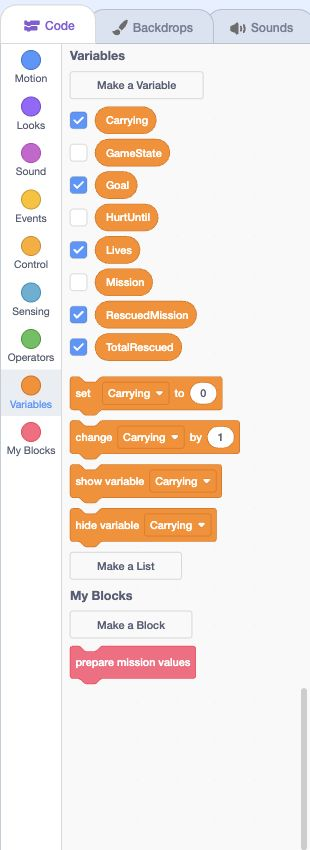
- Click: Make Lives and HurtUntil.
- Click: Show Lives.
- Check: Leave HurtUntil hidden.
Actual Scratch editor · step 1 Select Stage’s thumbnail
Give a new game three lives
In receive new game, add set Lives to 3, then Sensing → reset timer, immediately before broadcast prepare mission. Do not reset Lives inside each mission.
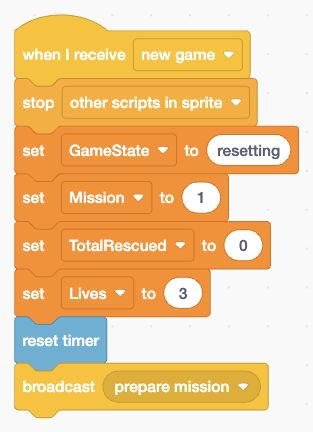
- Add: Set Lives to 3, then reset the timer.
Actual Scratch editor · step 2 Select Stage’s thumbnail
Reset the protection value
Inside define prepare mission values, add set HurtUntil to 0 after set Carrying to 0. Keep the backdrop choice below it.
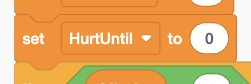
- Add: Reset HurtUntil for each mission.
Actual Scratch editor · step 3 Select Spaceship
Add the hit sound
Open Sounds. Upload hit.wav and name it Hit. Return to Code and build receive player hit → start sound Hit.
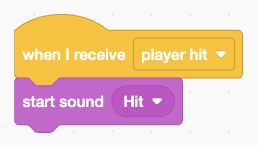
- Add: Build this Spaceship message stack.
Actual Scratch editor · step 4 Select Meteor
Add the collision question
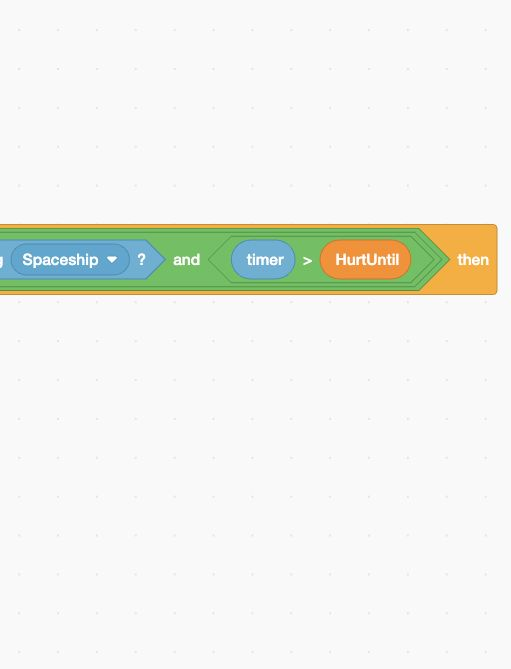
In the existing clone loop, after change y and before the bottom-edge check, add if. Use GameState = playing and another and containing touching Spaceship? and timer > HurtUntil.
- Add: Build this Meteor code stack.
Actual Scratch editor · step 5 Select Meteor
Protect the next second
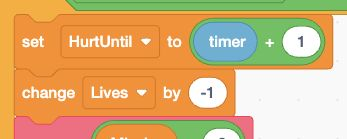
Inside that collision if, first add set HurtUntil to timer + 1. Put the blue timer oval inside the left input of a green + block.
- Add: Build this Meteor code stack.
Actual Scratch editor · step 6 Select Meteor
Take exactly one life
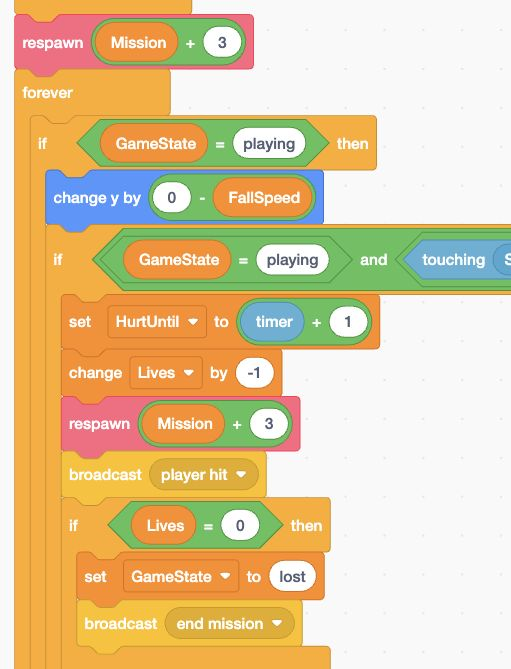
Next add change Lives by -1 → respawn Mission + 3 → broadcast player hit. Leave the existing bottom-edge respawn check below this collision if.
- Add: Take one life, respawn, then announce player hit.
Actual Scratch editor · step 7 Select Meteor
End the game at zero lives
Still inside the collision if, add if Lives = 0 → set GameState to lost → broadcast end mission. Put this after broadcast player hit.
- Add: Lose only when Lives reaches zero.
Actual Scratch editor · step 8 Select Spaceship
Show the temporary shield
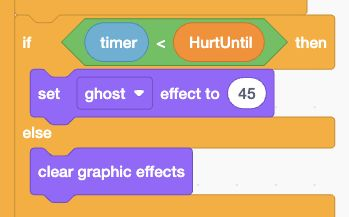
After the Carrying message if/else in play mission, add if/else timer < HurtUntil. Top: set ghost effect to 45. Else: clear graphic effects.
- Add: Build this Spaceship code stack.
Actual Scratch editor · step 9 Select Stage’s thumbnail
Choose the losing screen
Build receive end mission → if GameState = lost → if/else Lives = 0. Top: switch backdrop to Out of lives. Else: Time is up. The timer arrives next lesson.
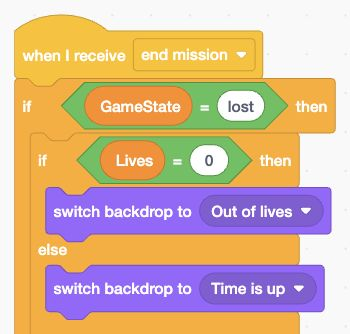
- Add: Build this Stage message stack.
Actual Scratch editor · step 10 In Scratch
Test the shield
Click the green flag. Touch a meteor. Lives should go from 3 to 2 and the ship should look faded for about one second. It can still move.
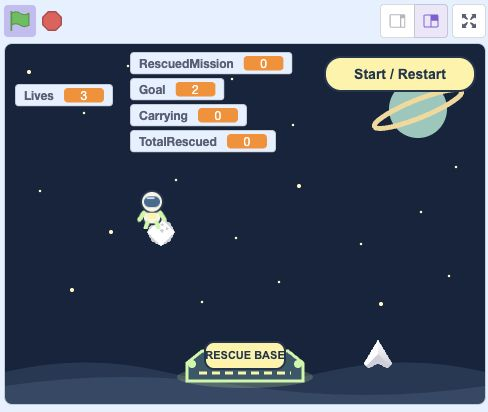
- Click: Click the green flag to test.
- Click: Use Start / Restart for a fresh game.
Actual Scratch editor · step 11 In Scratch
Test losing and restarting
After three separate hits, Out of lives should appear. Click Start / Restart: Lives returns to 3. Do not use stop all; the button must keep working.
- Check: Check that new game restores Lives to 3.
Actual Scratch editor · step 12 In Scratch
Save your progress
Choose File → Save to your computer. Name your file Space Rescue 4. Keep your own save for the next lesson.
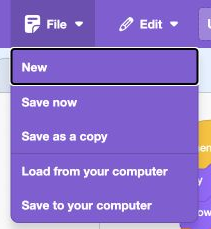
- Click: Open File.
- Click: Choose Save to your computer.
Actual Scratch editor · step 13
Lost your place? Optional comparison files
Save your own work first. Loading an .sb3 replaces the project on screen.
Optional: full block guide and finished game
Build with blocks · Lesson 4
See the blocks. Try the finished game.
Build these blocks in Scratch. This guide is read-only.
Your lesson’s block guide
Choose the matching sprite in Scratch, then build its stack from top to bottom.
Indented rows fit inside the block above. else marks the second slot of one if/else block.
My Blocks inputs pass values into one call. FallSpeed is a sprite-only variable: each meteor clone keeps its own value.
StageStage: define prepare mission values
- My Blocksdefine prepare mission values
- Variablesset [Goal] to (2)
- Variablesset [RescuedMission] to (0)
- Variablesset [Carrying] to (0)
- Variablesset [HurtUntil] to (0)
- Controlif <Mission = 1> then
- Looksswitch backdrop to [Mission 1]
- elseSecond slot of the same if/else blockControlif <Mission = 2> then
- Looksswitch backdrop to [Mission 2]
- elseSecond slot of the same if/else blockLooksswitch backdrop to [Mission 3]
StageStage: when green flag clicked
- Eventswhen green flag clicked
- Eventsbroadcast [new game]
StageStage: when I receive [new game]
- Eventswhen I receive [new game]
- Controlstop [other scripts in sprite]
- Variablesset [GameState] to (resetting)
- Variablesset [Mission] to (1)
- Variablesset [TotalRescued] to (0)
- Variablesset [Lives] to (3)
- Sensingreset timer
- Eventsbroadcast [prepare mission]
StageStage: when I receive [prepare mission]
- Eventswhen I receive [prepare mission]
- Controlstop [other scripts in sprite]
- Variablesset [GameState] to (resetting)
- Eventsbroadcast [reset world] and wait
- My Blockscall prepare mission values
- Variablesset [GameState] to (playing)
- Eventsbroadcast [play mission]
StageStage: when I receive [mission clear]
- Eventswhen I receive [mission clear]
- Controlif <GameState = between> then
- Looksswitch backdrop to [Mission complete]
- Eventsbroadcast [end mission] and wait
StageStage: when I receive [end mission]
- Eventswhen I receive [end mission]
- Controlif <GameState = lost> then
- Controlif <Lives = 0> then
- Looksswitch backdrop to [Out of lives]
- elseSecond slot of the same if/else blockLooksswitch backdrop to [Time is up]
SpaceshipSpaceship: define move ship (dx) (dy)
- My Blocksdefine move ship (dx) (dy)
- Motionchange x by (dx)
- Motionchange y by (dy)
- Controlif <x position > 210> then
- Motionset x to (210)
- Controlif <x position < -210> then
- Motionset x to (-210)
- Controlif <y position > 125> then
- Motionset y to (125)
- Controlif <y position < -155> then
- Motionset y to (-155)
SpaceshipSpaceship: when I receive [reset world]
- Eventswhen I receive [reset world]
- Controlstop [other scripts in sprite]
- Lookshide
- Lookssay []
- Looksclear graphic effects
- Motiongo to x: (0) y: (-130)
SpaceshipSpaceship: when I receive [play mission]
- Eventswhen I receive [play mission]
- Looksshow
- Controlforever
- Controlif <GameState = playing> then
- Controlif <key [right arrow] pressed?> then
- My Blockscall move ship (7) (0)
- Controlif <key [left arrow] pressed?> then
- My Blockscall move ship (-7) (0)
- Controlif <key [up arrow] pressed?> then
- My Blockscall move ship (0) (7)
- Controlif <key [down arrow] pressed?> then
- My Blockscall move ship (0) (-7)
- Controlif <Carrying = 1> then
- Lookssay [Passenger aboard!]
- elseSecond slot of the same if/else blockLookssay []
- Controlif <timer < HurtUntil> then
- Looksset [ghost] effect to (45)
- elseSecond slot of the same if/else blockLooksclear graphic effects
SpaceshipSpaceship: when I receive [end mission]
- Eventswhen I receive [end mission]
- Controlstop [other scripts in sprite]
- Lookshide
- Lookssay []
- Looksclear graphic effects
SpaceshipSpaceship: when I receive [player hit]
- Eventswhen I receive [player hit]
- Soundstart sound [Hit]
AstronautAstronaut: when I receive [reset world]
- Eventswhen I receive [reset world]
- Controlstop [other scripts in sprite]
- Lookshide
- Lookssay []
- Motiongo to x: (pick random (-190) to (190)) y: (pick random (0) to (45))
AstronautAstronaut: when I receive [play mission]
- Eventswhen I receive [play mission]
- Looksshow
- Controlforever
- Controlif <<GameState = playing> and <<Carrying = 0> and <touching [Spaceship]?>>> then
- Variablesset [Carrying] to (1)
- Lookshide
- Soundstart sound [Rescue]
AstronautAstronaut: when I receive [rescue delivered]
- Eventswhen I receive [rescue delivered]
- Controlif <GameState = playing> then
- Motiongo to x: (pick random (-190) to (190)) y: (pick random (0) to (45))
- Looksshow
AstronautAstronaut: when I receive [end mission]
- Eventswhen I receive [end mission]
- Controlstop [other scripts in sprite]
- Lookshide
BaseStationBaseStation: when I receive [reset world]
- Eventswhen I receive [reset world]
- Controlstop [other scripts in sprite]
- Lookshide
- Motiongo to x: (0) y: (-140)
BaseStationBaseStation: when I receive [play mission]
- Eventswhen I receive [play mission]
- Looksshow
- Controlforever
- Controlif <<GameState = playing> and <<Carrying = 1> and <touching [Spaceship]?>>> then
- Variablesset [Carrying] to (0)
- Variableschange [RescuedMission] by (1)
- Variableschange [TotalRescued] by (1)
- Controlif <RescuedMission = Goal> then
- Variablesset [GameState] to (between)
- Eventsbroadcast [mission clear]
- elseSecond slot of the same if/else blockEventsbroadcast [rescue delivered]
- Soundstart sound [Rescue]
BaseStationBaseStation: when I receive [end mission]
- Eventswhen I receive [end mission]
- Controlstop [other scripts in sprite]
- Lookshide
MeteorMeteor: define respawn (speed)
- My Blocksdefine respawn (speed)
- Variablesset [FallSpeed · this sprite only] to (speed)
- Motiongo to x: (pick random (-205) to (205)) y: (180)
- Looksshow
MeteorMeteor: when I receive [reset world]
- Eventswhen I receive [reset world]
- Lookshide
- Controlstop [other scripts in sprite]
- Controldelete this clone
MeteorMeteor: when I receive [end mission]
- Eventswhen I receive [end mission]
- Lookshide
- Controlstop [other scripts in sprite]
- Controldelete this clone
MeteorMeteor: when I receive [play mission]
- Eventswhen I receive [play mission]
- Lookshide
- Controlrepeat (1)
- Controlcreate clone of [myself]
MeteorMeteor: when I start as a clone
- Controlwhen I start as a clone
- My Blockscall respawn (Mission + 3)
- Controlforever
- Controlif <GameState = playing> then
- Motionchange y by (0 - FallSpeed)
- Controlif <<GameState = playing> and <<touching [Spaceship]?> and <timer > HurtUntil>>> then
- Variablesset [HurtUntil] to (timer + 1)
- Variableschange [Lives] by (-1)
- My Blockscall respawn (Mission + 3)
- Eventsbroadcast [player hit]
- Controlif <Lives = 0> then
- Variablesset [GameState] to (lost)
- Eventsbroadcast [end mission]
- Controlif <<GameState = playing> and <y position < -175>> then
- My Blockscall respawn (Mission + 3)
Start / RestartStart / Restart: when green flag clicked
- Eventswhen green flag clicked
- Motiongo to x: (155) y: (150)
- Looksshow
Start / RestartStart / Restart: when this sprite clicked
- Eventswhen this sprite clicked
- Eventsbroadcast [new game]
Save your current Scratch project first. Then choose File → Load from your computer and select this .sb3 file.
Open the Scratch editor ↗Opening the editor does not load the download automatically.
Finished game preview
This is the completed game, including features from later lessons. It does not run this lesson’s checkpoint.
Choose the green flag, then use all four arrow keys inside the Scratch player. Open your checkpoint in Scratch to test the blocks for this lesson.
Open the finished game in a new tab ↗Ready for the next step?
Return here anytime to review.
Lesson discussion
Ask a question or help a classmate. Mr. S can reply here.
Loading discussion…