
Pick Up an Astronaut and Return to Base
- Build the Rescue Systems
- 30 minutes
- Advanced Scratch · Ages 8–11
Start a new rescue game. Fly to an astronaut, pick them up, and bring them back to base. Save and take a break after any card.
Prerequisite: Scratch Meteor Challenge. Complete Meteor Challenge before adding rescue missions, custom blocks, and clones.
Your goal
Fly to an astronaut, pick them up and deliver them to BaseStation.
Do one step. Match the picture. Then move on.
Download the Space Rescue art. Extract the ZIP first: double-click on Mac; choose Extract All on Windows. Upload the extracted images.
In Scratch
Start a new project
Save your other game first. Choose File → New. Delete the default cat in this new project. Name it Space Rescue Adventure.
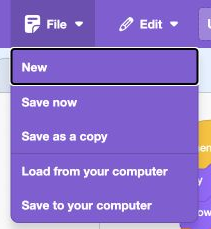
- Click: Open File.
- Click: Choose New after saving your other game.
Actual Scratch editor · step 1 Select Stage’s thumbnail
Select the small Stage thumbnail
Click the small Stage picture beside the sprite list. The tab should say Backdrops. Clicking the big game preview does not select Stage.
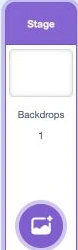
- Click: Click this small Stage thumbnail.
Actual Scratch editor · step 2 Select Stage’s thumbnail
Upload the first mission
Point at the landscape button. Choose the top up arrow: Upload Backdrop. Pick mission-1.svg from the extracted art folder. Rename it Mission 1.
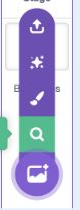
- Click: Choose the top arrow to upload a backdrop.
Actual Scratch editor · step 3 Select Stage’s thumbnail
Add missions 2 and 3
Upload mission-2.svg → Mission 2, then mission-3.svg → Mission 3. Delete only the unused white backdrop1. Keep the three mission pictures in order.
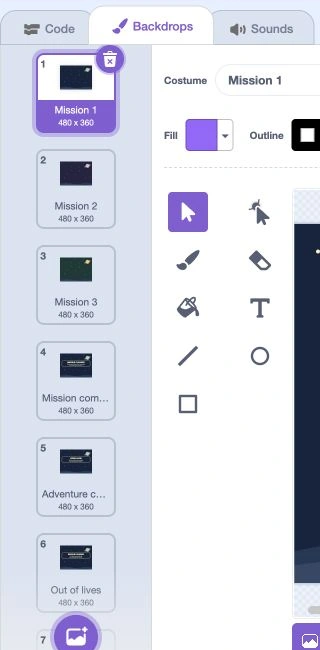
- Check: Keep Mission 2 and Mission 3 in order.
- Click: Open Backdrops.
Actual Scratch editor · step 4 Select Stage’s thumbnail
Add two success screens
Upload mission-complete.svg → Mission complete. Upload adventure-won.svg → Adventure complete. Copy the names and spaces exactly.
- Check: Check both success backdrop names.
- Click: Keep the Backdrops tab open.
Actual Scratch editor · step 5 Select Stage’s thumbnail
Add the losing screens
Upload out-of-lives.svg → Out of lives, then time-is-up.svg → Time is up. You should have seven backdrops. Select Mission 1 again.
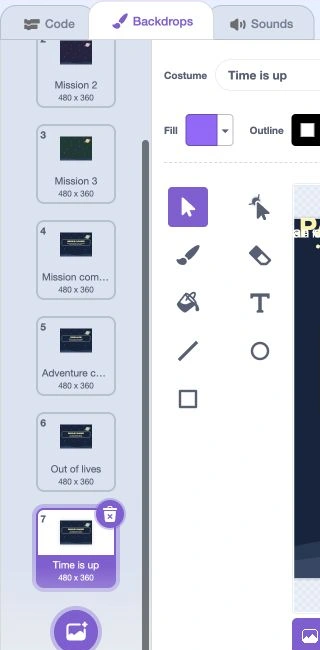
- Check: Keep both losing backdrops at the end.
- Click: Scroll up to select Mission 1 again.
Actual Scratch editor · step 6 In Scratch
Upload the rescue base
Use the cat button’s top up arrow: Upload Sprite. Choose base-station.svg. Name it BaseStation. Set x 0, y -140, Size 100 and Direction 90.
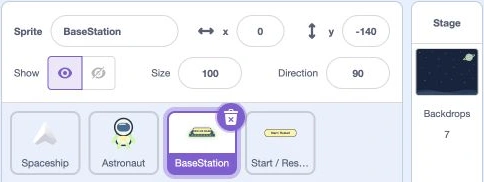
- Click: Check the sprite name.
- Click: Set x and y as shown.
- Click: Set the sprite size.
Actual Scratch editor · step 7 Select BaseStation
Upload the rescue sound
Open Sounds. Use Upload Sound for catch.wav. Rename the sound Rescue. We will use it after a delivery.
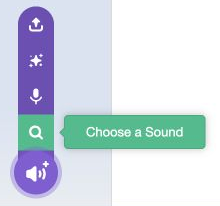
- Click: Choose the top arrow to upload a sound.
Actual Scratch editor · step 8 In Scratch
Upload the spaceship
Use Upload Sprite for spaceship.png. Name it Spaceship. Set x 0, y -130, Size 60 and Direction 90.
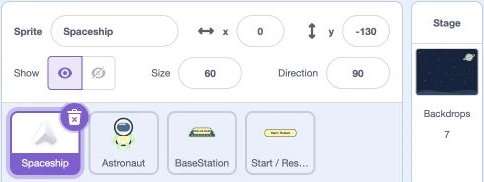
- Click: Check the sprite name.
- Click: Set x and y as shown.
- Click: Set the sprite size.
Actual Scratch editor · step 9 In Scratch
Upload the astronaut
Use Upload Sprite for astronaut.svg. Name it Astronaut. Set x -120, y 20, Size 90 and Direction 90.
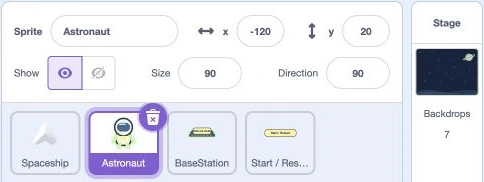
- Click: Check the sprite name.
- Click: Set x and y as shown.
- Click: Set the sprite size.
Actual Scratch editor · step 10 Select Astronaut
Add the pickup sound
Open Sounds. Upload catch.wav here too. Rename it Rescue. Each sprite needs its own sound upload.
- Click: Choose the top arrow to upload a sound.
Actual Scratch editor · step 11 In Scratch
Upload the restart button
Use Upload Sprite for start-restart.svg. Name it Start / Restart. Set x 155, y 150, Size 100 and Direction 90.
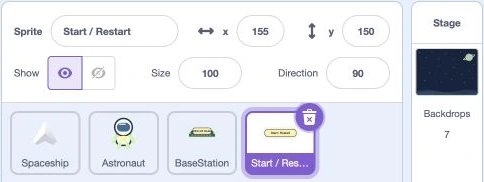
- Click: Check the sprite name.
- Click: Set x and y as shown.
- Click: Set the sprite size.
Actual Scratch editor · step 12 Select Stage’s thumbnail
Make GameState
Choose Code → Variables → Make a Variable. Type GameState, then OK. Variables made on Stage are shared by all sprites. Leave cloud storage off.
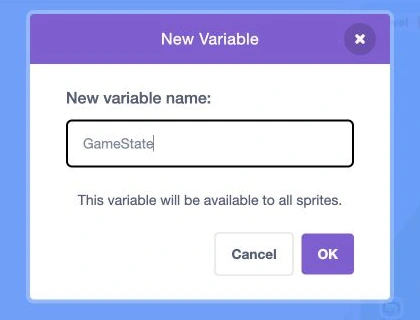
- Click: Type GameState exactly.
- Click: Click OK.
Actual Scratch editor · step 13 Select Stage’s thumbnail
Make five more variables
Make Mission, Goal, Carrying, RescuedMission and TotalRescued. Use a separate Make a Variable dialog for each name. Keep the capital letters.
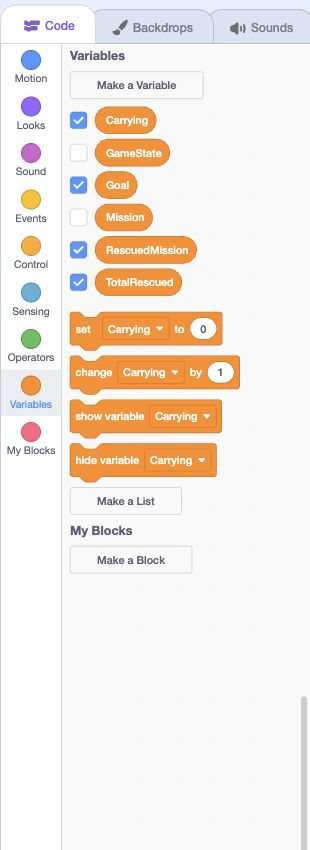
- Click: Make each of the five named variables.
- Keep: Keep Variables selected.
Actual Scratch editor · step 14 Select Stage’s thumbnail
Choose the visible counters
Tick Goal, Carrying, RescuedMission and TotalRescued. Untick the others. We set the numbers with blocks below; a checkbox only shows or hides a counter.
- Click: Show Carrying.
- Click: Show Goal.
- Click: Show RescuedMission.
- Click: Show TotalRescued.
Actual Scratch editor · step 15 Select Stage’s thumbnail
Make the first message names
In Events, open a broadcast dropdown → New message. Create new game, prepare mission and reset world. Use these exact spaces.
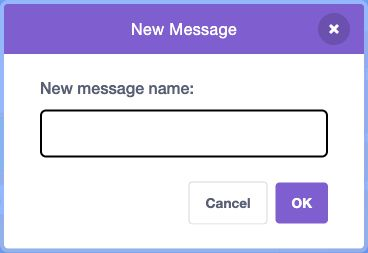
- Click: Type the exact message name.
- Click: Click OK.
Actual Scratch editor · step 16 Select Stage’s thumbnail
Make the play and delivery messages
Repeat New message for play mission, rescue delivered and mission clear. Messages let the sprites talk to each other.
- Click: Type the exact message name.
- Click: Click OK.
Actual Scratch editor · step 17 Select Stage’s thumbnail
Make the remaining messages
Create end mission, next mission and player hit. These last two will be used in later lessons.
- Click: Type the exact message name.
- Click: Click OK.
Actual Scratch editor · step 18 Select Stage’s thumbnail
Start a game with the green flag
Build a separate when green flag clicked → broadcast new game stack. Use ordinary broadcast.
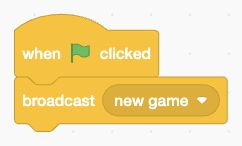
- Add: Start a game with the green flag.
Actual Scratch editor · step 19 Select Stage’s thumbnail
Start the new game stack
Build when I receive new game. Add Control → stop, choosing other scripts in sprite. Then add set GameState to resetting.
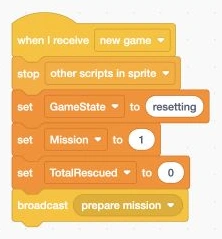
- Add: Start with the receive, stop, and GameState blocks.
Actual Scratch editor · step 20 Select Stage’s thumbnail
Set the first mission and total
Under GameState, add set Mission to 1 and set TotalRescued to 0. Type into the white inputs on the orange set blocks.
- Add: Set Mission to 1 and TotalRescued to 0.
Actual Scratch editor · step 21 Select Stage’s thumbnail
Prepare the mission
Finish that stack with broadcast prepare mission. Now make a separate when I receive prepare mission stack.
- Add: Broadcast prepare mission last.
Actual Scratch editor · step 22 Select Stage’s thumbnail
Reset before playing
Under receive prepare mission, add stop other scripts in sprite → set GameState to resetting → broadcast reset world and wait. Keep this exact order.
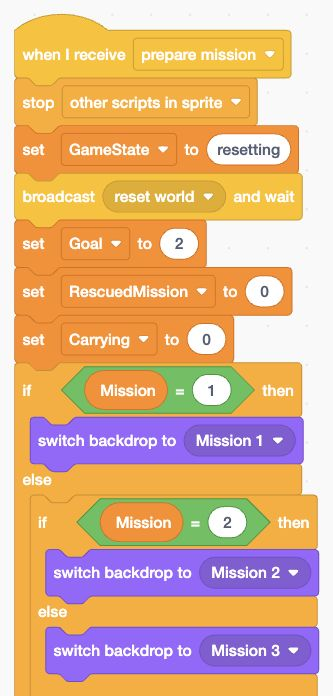
- Add: Build these four reset instructions first.
Actual Scratch editor · step 23 Select Stage’s thumbnail
Set the mission values
Next add set Goal to 2, set RescuedMission to 0 and set Carrying to 0. Carrying 0 means there is no passenger aboard.
- Add: Add the three mission values next.
Actual Scratch editor · step 24 Select Stage’s thumbnail
Pick mission 1’s backdrop
Next add if/else. Use Operators → = to ask Mission = 1. Put switch backdrop to Mission 1 in its top opening.
- Add: Test Mission 1 and choose its backdrop.
Actual Scratch editor · step 25 Select Stage’s thumbnail
Pick the other mission backdrops
Inside that else, add another if/else. Test Mission = 2. Put Mission 2 in its top opening and Mission 3 in its else.
- Add: Nest the Mission 2 check inside else.
Actual Scratch editor · step 26 Select Stage’s thumbnail
Tell the sprites to play
Below the whole backdrop if/else, add set GameState to playing → broadcast play mission. Do not use broadcast and wait for play mission: its movement loops keep running.
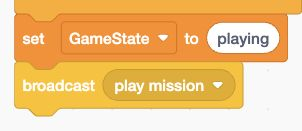
- Add: Build this Stage code stack.
Actual Scratch editor · step 27 Select Stage’s thumbnail
Show a completed mission
Build a separate receive mission clear → if GameState = between. Inside it: switch backdrop to Mission complete → broadcast end mission and wait.
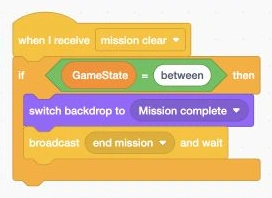
- Add: Show a completed mission.
Actual Scratch editor · step 28 Select Spaceship
Reset the ship
Build receive reset world → stop other scripts in sprite → hide → say an empty message → clear graphic effects → go to x 0 y -130.
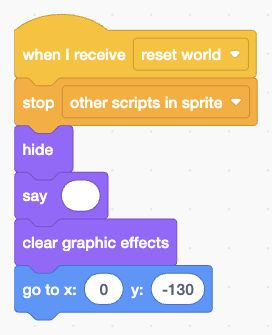
- Add: Build this Spaceship message stack.
Actual Scratch editor · step 29 Select Spaceship
Start the flying loop
Build a separate receive play mission → show → forever → if GameState = playing. Put the movement blocks inside this if.
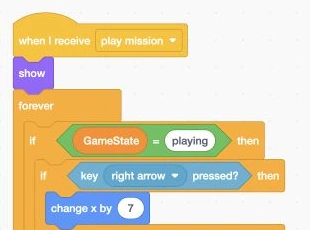
- Add: Start the show, forever, and playing check.
Actual Scratch editor · step 30 Select Spaceship
Move right and left
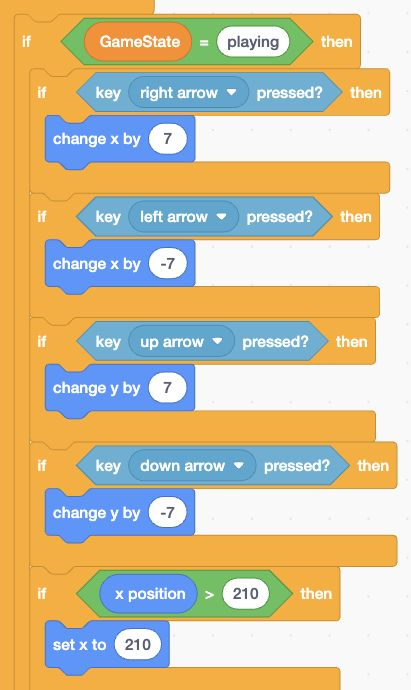
Inside GameState = playing, add if key right arrow pressed? → change x by 7. Below it, add if key left arrow pressed? → change x by -7.
- Add: Add right and left arrow checks.
Actual Scratch editor · step 31 Select Spaceship
Move up and down
Below the left-arrow if, add if key up arrow pressed? → change y by 7. Then add if key down arrow pressed? → change y by -7.
- Add: Add up and down arrow checks.
Actual Scratch editor · step 32 Select Spaceship
Stop at the right edge
Below the four arrow checks, add if x position > 210 → set x to 210. Keep it inside GameState = playing.
- Add: Clamp the right edge at x 210.
Actual Scratch editor · step 33 Select Spaceship
Stop at the other three edges
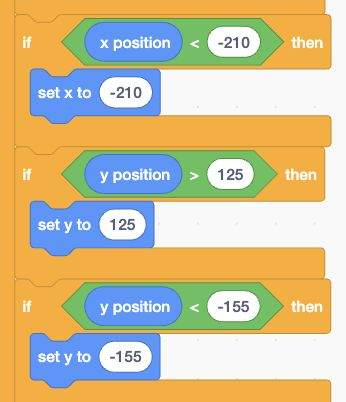
Add three separate checks: x position < -210 → set x -210; y position > 125 → set y 125; y position < -155 → set y -155.
- Add: Build this Spaceship code stack.
Actual Scratch editor · step 34 Select Spaceship
Show a passenger message
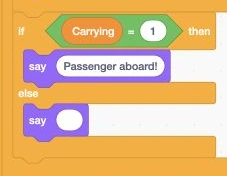
Below the edge checks, add if/else Carrying = 1. Top opening: say Passenger aboard! Else: say an empty message. Keep it in the same movement loop.
- Add: Show a passenger message.
Actual Scratch editor · step 35 Select Spaceship
Stop the ship at an ending
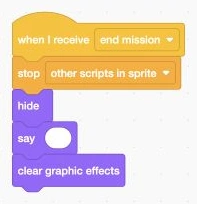
Build a separate receive end mission → stop other scripts in sprite → hide → say an empty message → clear graphic effects.
- Add: Stop the ship at an ending.
Actual Scratch editor · step 36 Select Astronaut
Reset the astronaut
Build receive reset world → stop other scripts in sprite → hide → say an empty message. Add go to x pick random -190 to 190, y pick random 0 to 45.
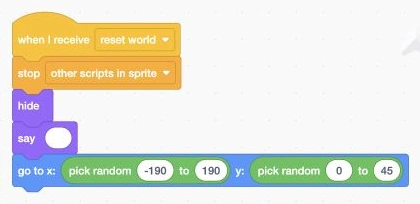
- Add: Reset the astronaut.
Actual Scratch editor · step 37 Select Astronaut
Start the pickup loop
Build a separate receive play mission → show → forever → if. We will put three checks into the if’s question.
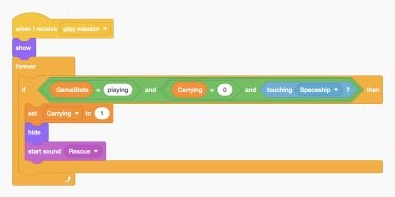
- Add: Start the astronaut loop with an empty if.
Actual Scratch editor · step 38 Select Astronaut
Ask whether pickup is allowed
Put and in the question. Left: GameState = playing. Right: another and containing Carrying = 0 and touching Spaceship?. Find touching in Sensing.
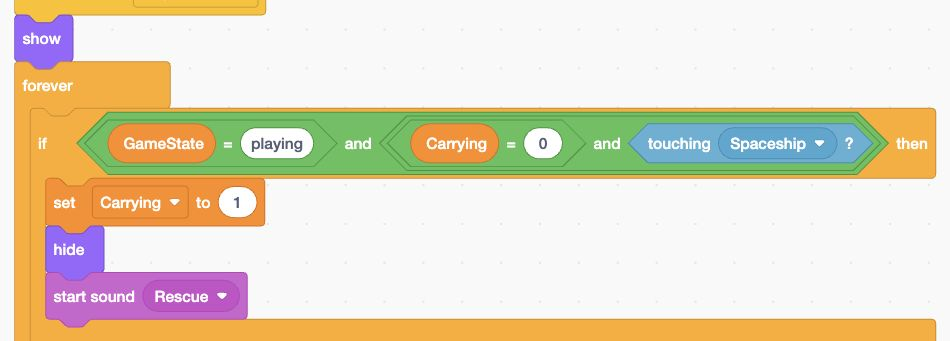
- Add: Build the three pickup checks with and.
Actual Scratch editor · step 39 Select Astronaut
Put the passenger aboard
Inside that if, add set Carrying to 1 → hide → start sound Rescue. The astronaut hides because the passenger is now aboard the ship.
- Add: Set Carrying, hide, and play the pickup sound.
Actual Scratch editor · step 40 Select Astronaut
Send another astronaut after delivery
Build a separate receive rescue delivered → if GameState = playing. Inside it, go to the same random x and y ranges, then show.
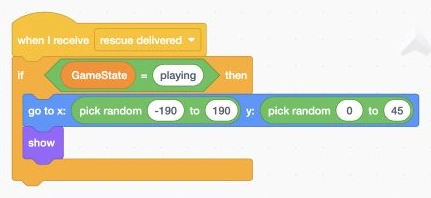
- Add: Send another astronaut after delivery.
Actual Scratch editor · step 41 Select Astronaut
Hide the astronaut at an ending
Build receive end mission → stop other scripts in sprite → hide. Keep this stack separate.
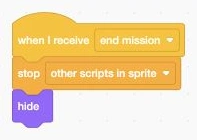
- Add: Hide the astronaut at an ending.
Actual Scratch editor · step 42 Select BaseStation
Reset the base
Build receive reset world → stop other scripts in sprite → hide → go to x 0 y -140. This stack must finish; do not add forever here.
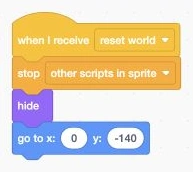
- Add: Reset the base.
Actual Scratch editor · step 43 Select BaseStation
Start the delivery loop
Build a separate receive play mission → show → forever → if. Keep all the delivery checks inside this if.
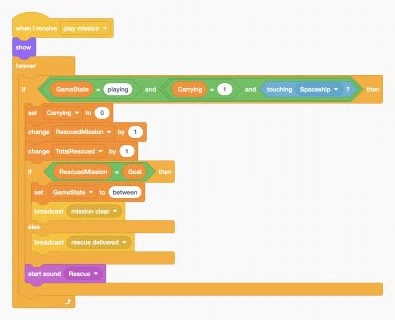
- Add: Start the base loop and delivery if.
Actual Scratch editor · step 44 Select BaseStation
Ask whether delivery is allowed
Use and with GameState = playing on the left. On the right, nest another and with Carrying = 1 and touching Spaceship?.
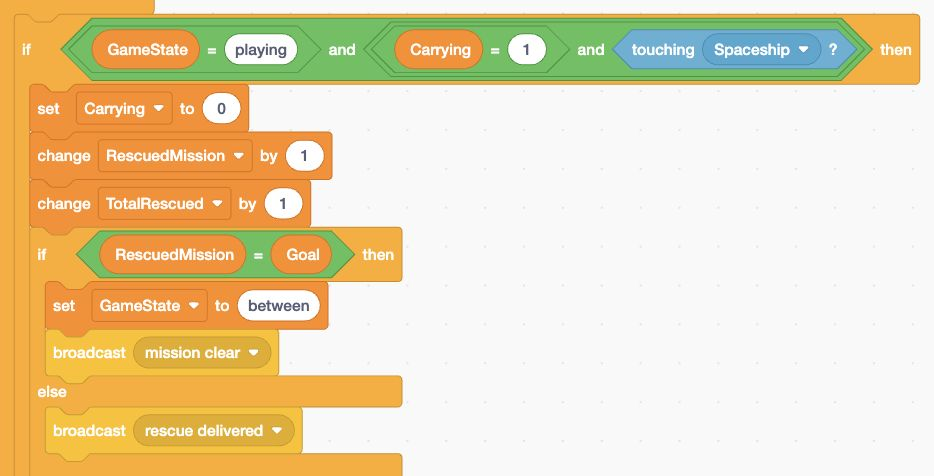
- Add: Build the three delivery checks with and.
Actual Scratch editor · step 45 Select BaseStation
Count one delivery
Inside that if, add set Carrying to 0 → change RescuedMission by 1 → change TotalRescued by 1. Clear Carrying first so one passenger cannot score twice.
- Add: Clear Carrying before increasing both rescue counters.
Actual Scratch editor · step 46 Select BaseStation
Check the mission goal
Below those three blocks, add if/else RescuedMission = Goal. In the top opening, put set GameState to between → broadcast mission clear.
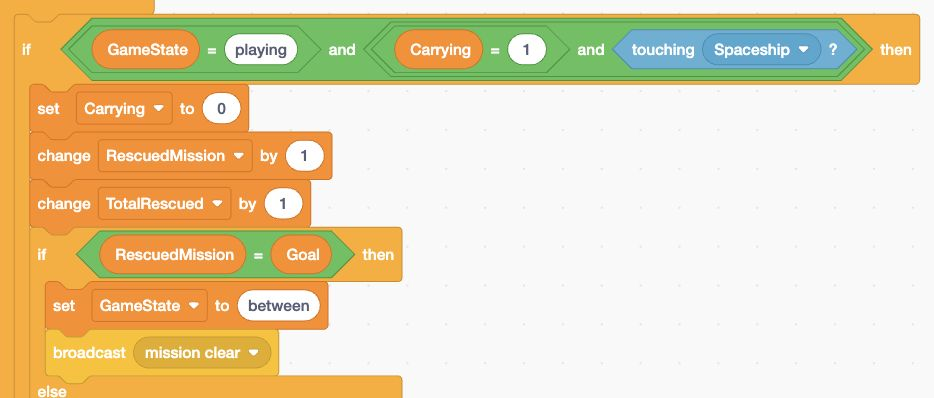
- Add: Check the goal and announce mission clear.
Actual Scratch editor · step 47 Select BaseStation
Keep rescuing until the goal
In that else, put broadcast rescue delivered. Below the whole goal if/else, add start sound Rescue. It stays inside the delivery check.
- Add: Broadcast another rescue inside else; add the sound.
Actual Scratch editor · step 48 Select BaseStation
Hide the base at an ending
Build receive end mission → stop other scripts in sprite → hide on BaseStation too. Use the same three-block pattern as the picture.
- Add: Hide the base at an ending.
Actual Scratch editor · step 49 Select Start / Restart
Show the button
Build when green flag clicked → go to x 155 y 150 → show. This button stays available after a mission ends.
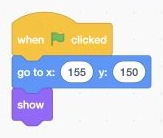
- Add: Show the button.
Actual Scratch editor · step 50 Select Start / Restart
Make the button work
Build a separate when this sprite clicked → broadcast new game. Keep the green-flag stack too.
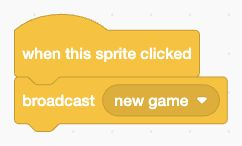
- Add: Make the button work.
Actual Scratch editor · step 51 In Scratch
Try one pickup and delivery
Click the green flag. Use all four arrows to touch the astronaut. Carrying becomes 1. Fly back to BaseStation: Carrying becomes 0 and both rescue counters increase.
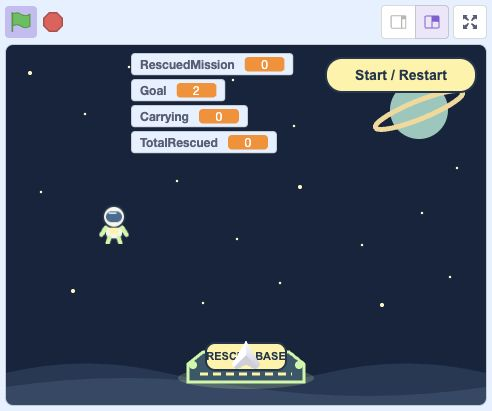
- Click: Click the green flag.
- Check: Watch Carrying and the rescue counters.
- Check: Return to this base with a passenger.
Actual Scratch editor · step 52 In Scratch
Finish the first mission
Deliver two astronauts. Mission complete should appear. Click Start / Restart to begin again. Meteors, lives, a timer and Next Mission come later.
- Click: Click Start / Restart after completing the mission.
Actual Scratch editor · step 53 In Scratch
Save your progress
Choose File → Save to your computer. Name your file Space Rescue 1. Keep your own save for the next lesson.
- Click: Open File.
- Click: Choose Save to your computer.
Actual Scratch editor · step 54
Lost your place? Optional comparison files
Save your own work first. Loading an .sb3 replaces the project on screen.
Optional: full block guide and finished game
Build with blocks · Lesson 1
See the blocks. Try the finished game.
Build these blocks in Scratch. This guide is read-only.
Your lesson’s block guide
Choose the matching sprite in Scratch, then build its stack from top to bottom.
Indented rows fit inside the block above. else marks the second slot of one if/else block.
StageStage: when green flag clicked
- Eventswhen green flag clicked
- Eventsbroadcast [new game]
StageStage: when I receive [new game]
- Eventswhen I receive [new game]
- Controlstop [other scripts in sprite]
- Variablesset [GameState] to (resetting)
- Variablesset [Mission] to (1)
- Variablesset [TotalRescued] to (0)
- Eventsbroadcast [prepare mission]
StageStage: when I receive [prepare mission]
- Eventswhen I receive [prepare mission]
- Controlstop [other scripts in sprite]
- Variablesset [GameState] to (resetting)
- Eventsbroadcast [reset world] and wait
- Variablesset [Goal] to (2)
- Variablesset [RescuedMission] to (0)
- Variablesset [Carrying] to (0)
- Controlif <Mission = 1> then
- Looksswitch backdrop to [Mission 1]
- elseSecond slot of the same if/else blockControlif <Mission = 2> then
- Looksswitch backdrop to [Mission 2]
- elseSecond slot of the same if/else blockLooksswitch backdrop to [Mission 3]
- Variablesset [GameState] to (playing)
- Eventsbroadcast [play mission]
StageStage: when I receive [mission clear]
- Eventswhen I receive [mission clear]
- Controlif <GameState = between> then
- Looksswitch backdrop to [Mission complete]
- Eventsbroadcast [end mission] and wait
SpaceshipSpaceship: when I receive [reset world]
- Eventswhen I receive [reset world]
- Controlstop [other scripts in sprite]
- Lookshide
- Lookssay []
- Looksclear graphic effects
- Motiongo to x: (0) y: (-130)
SpaceshipSpaceship: when I receive [play mission]
- Eventswhen I receive [play mission]
- Looksshow
- Controlforever
- Controlif <GameState = playing> then
- Controlif <key [right arrow] pressed?> then
- Motionchange x by (7)
- Controlif <key [left arrow] pressed?> then
- Motionchange x by (-7)
- Controlif <key [up arrow] pressed?> then
- Motionchange y by (7)
- Controlif <key [down arrow] pressed?> then
- Motionchange y by (-7)
- Controlif <x position > 210> then
- Motionset x to (210)
- Controlif <x position < -210> then
- Motionset x to (-210)
- Controlif <y position > 125> then
- Motionset y to (125)
- Controlif <y position < -155> then
- Motionset y to (-155)
- Controlif <Carrying = 1> then
- Lookssay [Passenger aboard!]
- elseSecond slot of the same if/else blockLookssay []
SpaceshipSpaceship: when I receive [end mission]
- Eventswhen I receive [end mission]
- Controlstop [other scripts in sprite]
- Lookshide
- Lookssay []
- Looksclear graphic effects
AstronautAstronaut: when I receive [reset world]
- Eventswhen I receive [reset world]
- Controlstop [other scripts in sprite]
- Lookshide
- Lookssay []
- Motiongo to x: (pick random (-190) to (190)) y: (pick random (0) to (45))
AstronautAstronaut: when I receive [play mission]
- Eventswhen I receive [play mission]
- Looksshow
- Controlforever
- Controlif <<GameState = playing> and <<Carrying = 0> and <touching [Spaceship]?>>> then
- Variablesset [Carrying] to (1)
- Lookshide
- Soundstart sound [Rescue]
AstronautAstronaut: when I receive [rescue delivered]
- Eventswhen I receive [rescue delivered]
- Controlif <GameState = playing> then
- Motiongo to x: (pick random (-190) to (190)) y: (pick random (0) to (45))
- Looksshow
AstronautAstronaut: when I receive [end mission]
- Eventswhen I receive [end mission]
- Controlstop [other scripts in sprite]
- Lookshide
BaseStationBaseStation: when I receive [reset world]
- Eventswhen I receive [reset world]
- Controlstop [other scripts in sprite]
- Lookshide
- Motiongo to x: (0) y: (-140)
BaseStationBaseStation: when I receive [play mission]
- Eventswhen I receive [play mission]
- Looksshow
- Controlforever
- Controlif <<GameState = playing> and <<Carrying = 1> and <touching [Spaceship]?>>> then
- Variablesset [Carrying] to (0)
- Variableschange [RescuedMission] by (1)
- Variableschange [TotalRescued] by (1)
- Controlif <RescuedMission = Goal> then
- Variablesset [GameState] to (between)
- Eventsbroadcast [mission clear]
- elseSecond slot of the same if/else blockEventsbroadcast [rescue delivered]
- Soundstart sound [Rescue]
BaseStationBaseStation: when I receive [end mission]
- Eventswhen I receive [end mission]
- Controlstop [other scripts in sprite]
- Lookshide
Start / RestartStart / Restart: when green flag clicked
- Eventswhen green flag clicked
- Motiongo to x: (155) y: (150)
- Looksshow
Start / RestartStart / Restart: when this sprite clicked
- Eventswhen this sprite clicked
- Eventsbroadcast [new game]
Save your current Scratch project first. Then choose File → Load from your computer and select this .sb3 file.
Open the Scratch editor ↗Opening the editor does not load the download automatically.
Finished game preview
This is the completed game, including features from later lessons. It does not run this lesson’s checkpoint.
Choose the green flag, then use all four arrow keys inside the Scratch player. Open your checkpoint in Scratch to test the blocks for this lesson.
Open the finished game in a new tab ↗Ready for the next step?
Return here anytime to review.
Lesson discussion
Ask a question or help a classmate. Mr. S can reply here.
Loading discussion…